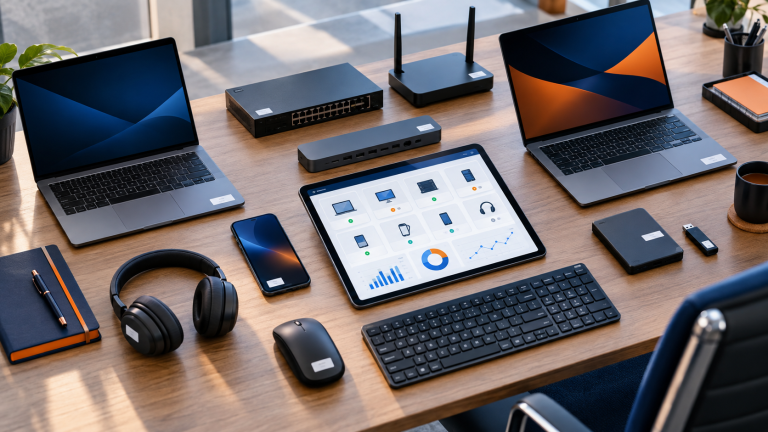

A new employee starts work on Monday, and by Friday afternoon, they discover they need a laptop, email, document access, Teams, several programs, a printer, and a VPN. If the company doesn't have an established process, the first few hours quickly turn into a series of IT calls.
A good IT onboarding process allows you to prepare the entire environment in advance, assign appropriate permissions, and reduce first-day issues. It's not just about configuring the laptop, but also about the entire process, including hardware, accounts, security, applications, data access, and documentation.
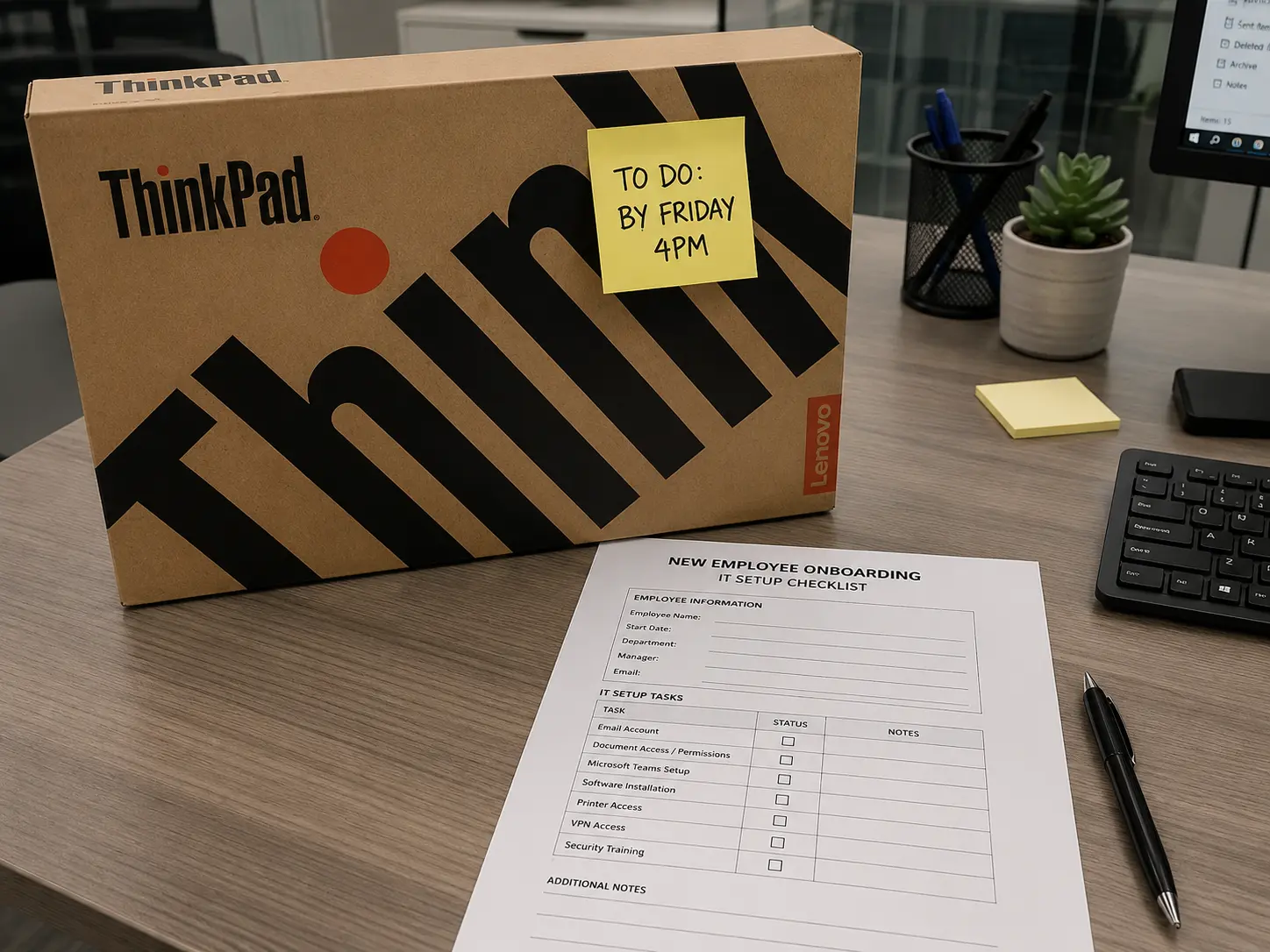
When should you start preparing a position for a new employee?
It's best to set a start date, not the day before the employee arrives at the office. IT may need time to order equipment, purchase licenses, prepare the device, create accounts, and configure access to company systems.
In practice, a simple onboarding form sent by HR or your manager works very well. It should include at least:
- • name and surname of the employee,
- • position and department,
- • date of commencement of work,
- • location or information about remote work,
- • immediate superior,
- • required equipment,
- • necessary applications and systems,
- • a person with a similar scope of responsibilities as a reference point for IT.
The last point is particularly useful, but it shouldn't automatically copy all the permissions of another employee. The scope of access must be verified each time.
The sooner such a report reaches the person responsible for company IT services, the greater the chance that a new employee will simply log in and start working on their first day.
Preparing a computer for a new employee
A company computer shouldn't be delivered to an employee "out of the box." Even a new one the laptop requires preparation in terms of corporate environment and security.
The first step is selecting the right equipment for the type of work being performed. A computer that primarily uses a browser and Office suite will require a different setup than a designer, analyst, or specialized software user.
Basic computer preparation should include:
- • installation or verification of the correct version of the operating system,
- • installation of Windows updates and current drivers,
- • disk encryption configuration BitLocker,
- • implementation of endpoint security and corporate policies,
- • installation of required applications,
- • marking the device and adding it to the equipment register.
In environments using Microsoft 365, the computer can additionally be registered with Microsoft Entra ID and covered central management. Thanks to this management of company computers doesn't have to involve manually configuring each device from scratch.
It's also worth checking the camera, microphone, Wi-Fi, docking station, and monitors right away. These are minor details until the new employee has their first online meeting in five minutes.
User account and Microsoft 365
Another element of IT onboarding is the creation of an individual user account.
In the case of companies using Microsoft 365 for Business This usually means creating a user, assigning the appropriate license, and configuring access to the services the employee actually needs.
This may include, but is not limited to:
- • mailbox and e-mail address,
- • Microsoft Teams,
- • OneDrive,
- • SharePoint,
- • shared mailboxes,
- • groups and distribution lists,
- • security groups,
- • additional applications resulting from the license.
In larger or more structured environments Microsoft 365 administration It's based on groups and defined roles. A sales representative can automatically gain access to specific Teams teams, SharePoint sites, or distribution groups, without having to manually add them to each resource individually.
The most important rule is simple: access should result from the employee's duties.
If someone needs sales department data, they should be granted access to sales department data. There's no need to grant them additional access to accounting, HR, or management documents just because another employee had such permissions.
MFA and account security
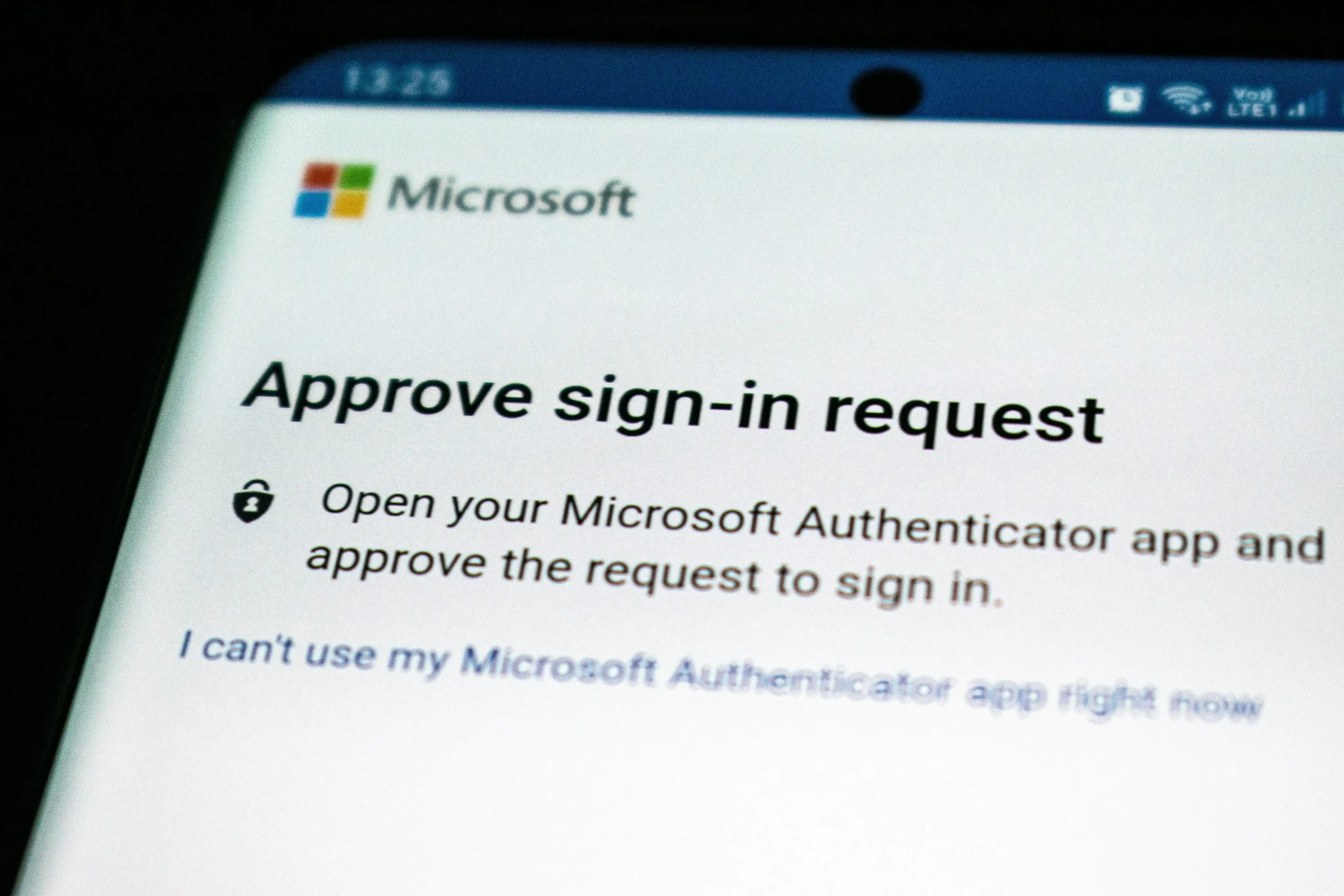
One of the first things you should do after creating your account is to configure it. multi-factor authentication, or MFA.
MFA means that simply knowing your password isn't enough to log in to your account. The user confirms their login using an additional method, such as the Microsoft Authenticator app.
During onboarding, it is worth remembering a few basic rules:
- • each employee uses their own account,
- • MFA is configured from the start,
- • the user account does not receive unnecessary administrative privileges,
- • passwords and access data are not shared between employees.
A local administrator account on a laptop shouldn't be a standard user privilege. If an employee needs to install a program or change a setting that requires elevated privileges, this should be handled according to company procedures.
This is one of the simpler elements IT security in the company, which at the same time limits many accidental changes to the system.
Access to company files and resources
Email is just the beginning. Most employees also need access to company data.
Depending on your environment, they may be located on a local file server, NAS, SharePoint, Teams, or several different locations.
When granting access, it's a good idea to use security groups instead of manually assigning permissions to each user. This simplifies management later and allows you to quickly see why a specific person has access to a given resource.
It's good practice to follow the principle of least privilege. Employees are granted exactly the level of access they need to perform their duties.
This doesn't mean making work more difficult. The point is that access to data should be a conscious decision, not the result of years of accumulating permissions.
It is also worth remembering that access to data and its back-up These are two different issues. Just because files are stored on a server, NAS, or in Microsoft 365 shouldn't automatically mean that a company has properly configured backups.
VPN and remote work
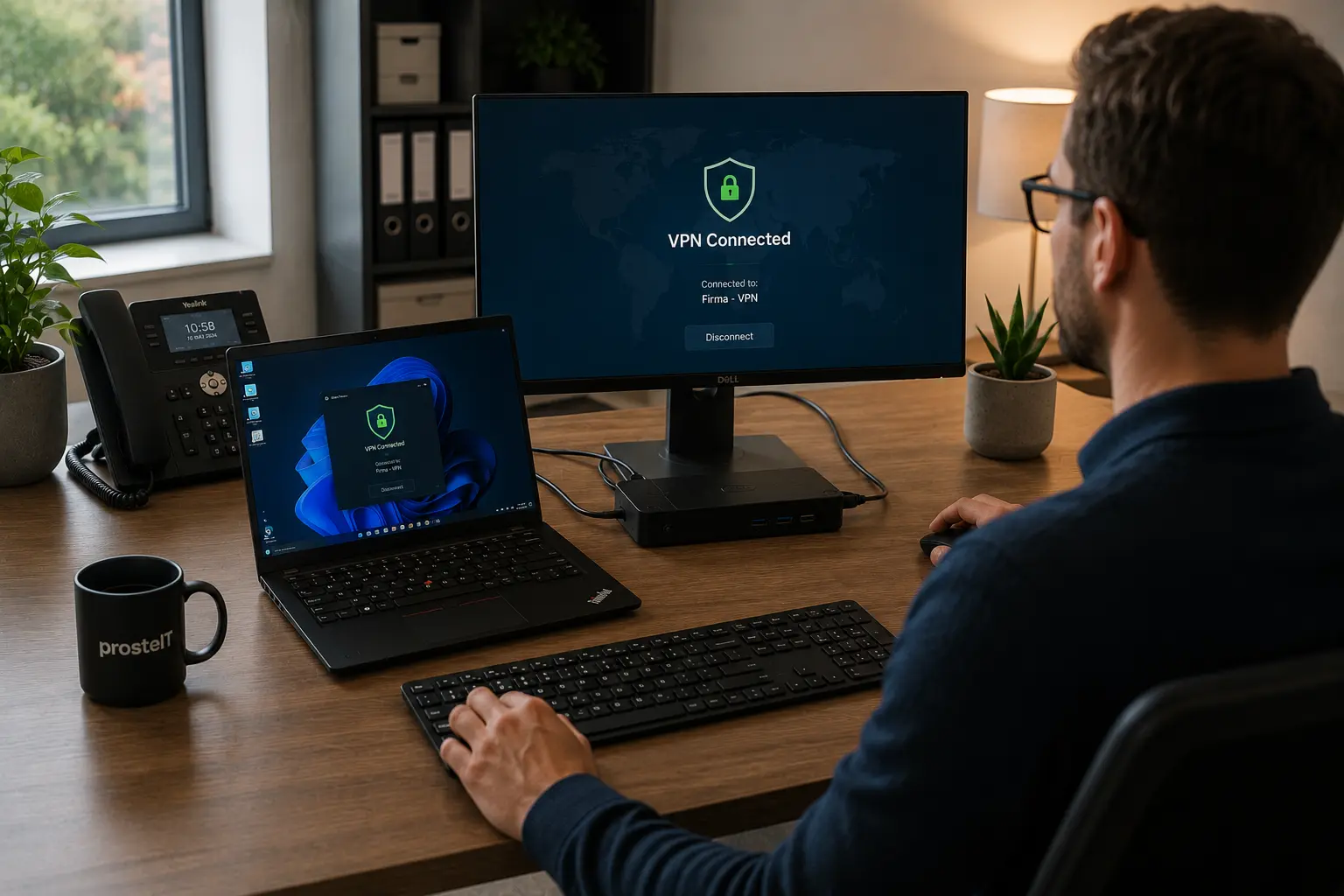
If the employee will be performing duties outside the office, a method of secure access to company resources must be prepared during onboarding.
Depending on the infrastructure, this may mean:
- • VPN connection configuration,
- • access to Remote Desktop or RDS environment,
- • preparing access to applications available only from the corporate network,
- • configuring additional MFA for remote access.
Alone VPN for business It doesn't solve all problems. You still need to determine what the user can access once connected and whether the device they're using is managed by the company.
It's best if the employee receives a laptop already configured and doesn't have to install the VPN client, import configurations, or search for server data on the first day.
Company programs and systems
Simply installing Office is rarely enough.
Depending on the position, an employee may need access to an ERP, CRM, warehouse system, accounting program, HR program, industry-specific application, or customer service system.
Before starting work, please check:
- • whether the application has been installed,
- • whether the user has the appropriate license,
- • whether an account has been created for him,
- • whether the appropriate scope of authorizations has been granted,
- • whether the program connects to the appropriate server or database,
- • whether required add-ons and integrations are working properly.
In practice, installing the program is often the simplest part of the task. More time is required to prepare the license, configure it, access databases, and establish the appropriate user role.
This also applies to qualified signatures, tokens, certificates and other tools assigned to a specific employee.
Printers, scanners and office equipment
Printers are one of those elements that are easy to forget when preparing a workstation.
It is worth configuring appropriate print queues in advance, setting a default printer if necessary, and checking access to multifunction devices.
If your company uses scan to folder or scan to email, you should also check that the new employee has access to the correct location and is familiar with how to use the device.
A well-executed onboarding means that these things are ready before the computer is handed over, rather than being configured on the first day of work by IT helpdesk.
Telephone, mobile devices and additional equipment
A workstation is not always just a laptop.
Depending on the employee's responsibilities, additional equipment may be needed:
- • work phone,
- • monitor,
- • docking station,
- • headphones,
- • webcam,
- • access card,
- • token or hardware key,
- • additional industry-specific devices.
Devices should be assigned to users in the inventory. This allows the company to know who owns a specific laptop, phone, monitor, or other equipment.
This is important not only during onboarding, but also later when employee offboarding and you need to recover your equipment, revoke access and close your accounts.
IT checklist for a new employee
The checklist below can be a starting point for creating your own onboarding procedure.
IT checklist for a new employee:
- ✓ computer / laptop
- ✓ monitor and accessories
- ✓ user account
- ✓ Microsoft 365
- ✓ email box
- ✓ MFA configuration
- ✓ Microsoft Teams
- ✓ OneDrive
- ✓ SharePoint
- ✓ groups and distribution lists
- ✓ access to the file server
- ✓ corporate applications
- ✓ required licenses
- ✓ VPN or remote access
- ✓ printers and scanners
- ✓ BitLocker encryption
- ✓ endpoint security
- ✓ telephone and mobile devices
- ✓ records of transferred equipment
- ✓ helpdesk contact instructions
- ✓ documentation of activities performed
- ✓ first login and access transfer procedure
Not every company will need all the elements. It's important that the list is tailored to the organization and repeatable for subsequent employees.
What should an employee get on their first day?
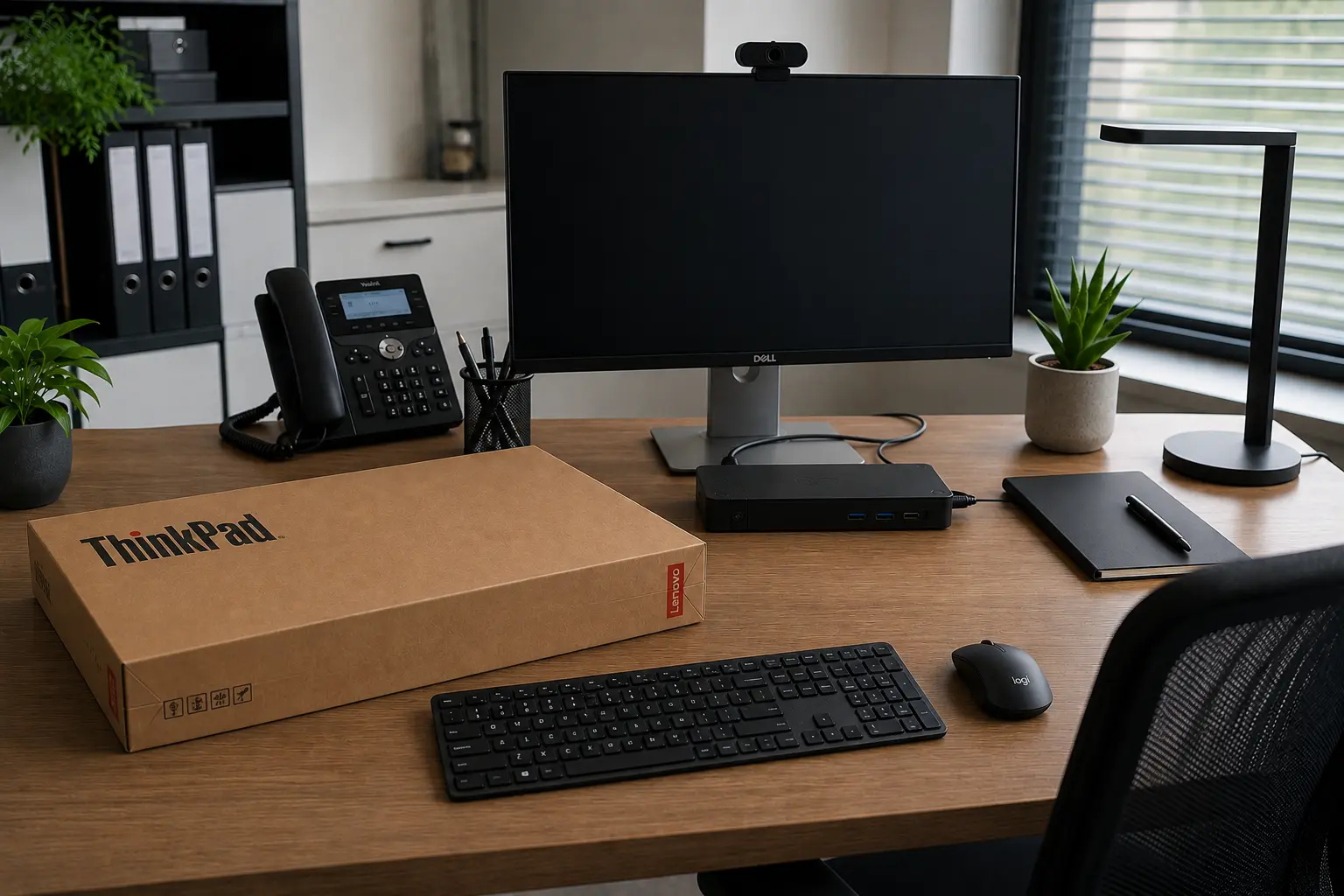
On their first day, a new employee should receive a ready-made environment, not a list of things that need to be configured.
At least what is worth checking before handing over the position:
- • a working computer,
- • active user account,
- • configured e-mail inbox,
- • working MFA,
- • access to Teams and Microsoft 365,
- • access to necessary data,
- • installed company applications,
- • working VPN, if needed,
- • configured printers,
- • information on how to contact the helpdesk.
A good test is to log into the employee's account and check basic services before handing over the equipment. This allows you to identify a missing license, broken folder access, or application issue before the user has to deal with it.
The most common mistakes when onboarding IT
Most problems are not due to difficult technology, but to the lack of an established process.
The most common errors are:
- • registering a new employee with IT the day before starting work,
- • last minute equipment preparation,
- • copying all permissions from another user,
- • giving an employee local administrator rights without need,
- • no MFA on the new account,
- • use of shared accounts by several people,
- • no records of the transferred equipment,
- • lack of documentation of granted access,
- • lack of one person responsible for coordinating the process,
- • no feedback to IT about changes in position or responsibilities.
Copying access from another employee is particularly problematic. While it might seem like the quickest solution, the person identified as the role model may have been receiving additional permissions unrelated to the new position for several years.
Onboarding is also a good time to get things in order. access management.
What does onboarding look like in a company with ongoing IT support?
With structured administration, the process can look very simple from an HR or supervisor perspective.
HR submits a single request containing the employee's details, start date, position, and requirements. The helpdesk or administrator then prepares the account, licenses, and appropriate permissions. The next step is to configure the computer, software, security, and data access.
The finished device is delivered to the employee, and the activities performed are recorded in the documentation.
This model offers several specific benefits:
- • the process is similar for each employee,
- • easier control of granted permissions,
- • the number of errors and omitted elements is reduced,
- • the employee can start normal work faster,
- • it is known who is responsible for preparing the position,
- • documentation of equipment, accounts and activities performed remains.
It is in such tasks that the difference between occasional "computer repair" and orderly IT services for companies. Onboarding is a process that connects helpdesk, IT administration, Microsoft 365, security, device management, and access management.
In companies using IT outsourcing On the client side, the entire process can be reduced to submitting a single form. Technical implementation remains the responsibility of the team responsible for the environment.
Can IT onboarding be automated?
Yes, at least partially.
In environments using Microsoft 365, Microsoft Entra ID, and device management tools, you can automate user creation, group assignment, application configuration, and PC settings deployment.
However, automation shouldn't replace decisions about what permissions are actually needed. Someone still needs to define the employee's role, the resources required, and approve data access.
The greatest benefits come from combining automation with a standard checklist and clearly defined responsibilities.
IT onboarding should be a process, not a rescue operation
Preparing a new employee doesn't end with purchasing a laptop and setting up a mailbox. It also requires connecting the hardware, operating system, Microsoft 365, security, applications, data, VPN, office devices, and the appropriate permissions.
Therefore, good IT onboarding should be a repeatable process performed according to an established checklist.
If a company has ongoing IT support, the HR or manager side of the process can be reduced to a single request: who starts work, when, in what position, and what accesses they require. The rest should be prepared, verified, and documented before the first day of work.
Frequently asked questions
The setup itself can take anywhere from a few dozen minutes to several hours. However, the entire process may require more time if you need to order hardware, purchase licenses, create accounts in additional systems, or obtain data access approval. Therefore, it's a good idea to submit the request to IT a few days in advance.
Ideally, immediately after confirming the start date, IT should receive information about the position, location, required equipment, applications, and access requirements. The earlier preparation begins, the lower the risk of problems on the first day.
Initially, less is always more, so only those that are relevant to their responsibilities. Access can include Microsoft 365, Teams, SharePoint, file servers, VPNs, and industry-specific systems. It's best to adhere to the principle of least privilege and grant access through defined groups.
In most cases, no. A standard user should work without administrator rights. If program installation or a specific task requires additional privileges, it should be performed by an administrator or in accordance with company procedures.
The process should have a clearly defined owner. HR or a supervisor provides information about the new employee, while the person or team responsible for IT administration should be responsible for preparing equipment, accounts, security, and access.
Yes. You can automate account creation, group and license assignment, device configuration, and application installation, among other things. Automation works best when the company organizes roles, access, and procedures in advance.
A good IT onboarding should be a repeatable process, not a series of last-minute activities. New employee preparation encompasses not only the computer and email inbox, but also accounts, Microsoft 365, MFA, data access, applications, VPN, office equipment, security, and documentation.
The simplest way to reduce errors is to have a single, consistent checklist and clearly defined responsibilities for the entire process. This allows new employees to start work from day one, while the company maintains control over equipment, licenses, and assigned authorizations.
At constant company IT support Onboarding can be even simpler. HR or a supervisor simply submits a single request with the employee's details, position, and required access, while the helpdesk or IT administrator handles account, hardware, and environment preparation. In practice, this means less improvisation, faster employee onboarding, and easier IT management, even as the company grows.