
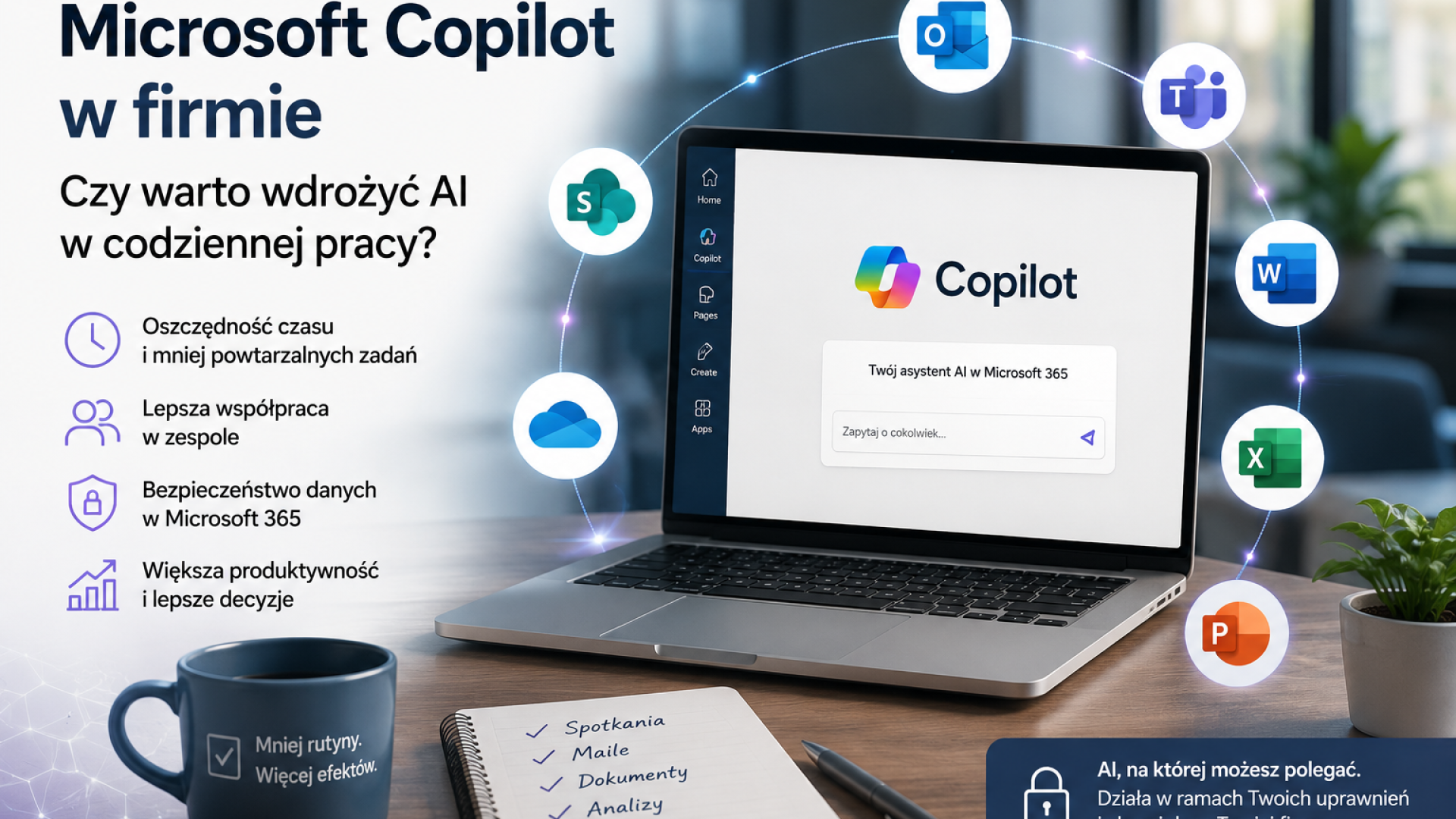
Microsoft Copilot in the company - is it worth implementing AI in everyday work?
In many companies, the workday begins similarly: dozens of new messages in Outlook, several meetings in Teams, documents to revise, a proposal to prepare, a report to review, an Excel spreadsheet to analyze, and tasks to be passed on. Added to this are notes scattered across chats, files saved in various folders, email attachments, and information that must be hastily sought. This isn't always a problem of a lack of staff. Often, it's a problem of information overload and repetitive office work.
That's where Microsoft Copilot comes in. To many, it sounds like just another trendy AI accessory, but in practice, it can be something much more useful – an assistant embedded in the tools your company already uses every day. Copilot can help with writing messages, summarizing meetings, preparing documents, analyzing data, creating presentations, and finding information in the Microsoft 365 environment. Therefore, Microsoft Copilot in your company can help not only with individual tasks but also better organize your daily information work.
However, it's important to be clear: Microsoft Copilot isn't a magic solution for a company that, after purchasing a license, will automatically organize documents, fix permission errors, and teach employees a new way of working. Its effectiveness depends on how the Microsoft 365 environment is prepared. If SharePoint is chaotic, Teams teams were created without rules, OneDrive is overflowing with company files, and users have too much access, Copilot can quickly expose this mess.
Therefore, implementing Microsoft Copilot should be treated not only as an AI tool purchase, but also as a project that streamlines the way a company works with information. A well-prepared Microsoft 365 Copilot can significantly reduce the time it takes to work on documents, meetings, and communications. A poorly implemented one can be disappointing, increase chaos, or reveal previously less visible problems.
In this article, we explain what Microsoft Copilot for Business is, where it can help, what needs to be sorted out before implementation, the most common mistakes organizations make, and when AI in the company makes the most sense. This article is aimed at small and medium-sized business owners, administrators, accounting staff, sales departments, management, and anyone who uses Microsoft 365 but feels their tools could be more efficient.
What is Microsoft Copilot and how does it work in your company?
Microsoft Copilot is an AI assistant integrated into the Microsoft 365 ecosystem. It's not just about chatting with a question. Its greatest value comes when Copilot works within the context of the user's work—in apps like Outlook, Teams, Word, Excel, PowerPoint, SharePoint, or OneDrive. This means users can ask not only for a general answer but also for help with a specific message, meeting, document, presentation, or data report. The Microsoft 365 Copilot architecture shows how the tool uses Microsoft 365 context and user permissions.
In practice, Microsoft Copilot works best in a company when the user uses a well-prepared Microsoft 365 environment and has access only to the data they actually need.
The difference between a standard AI chatbot and Copilot embedded in Microsoft 365 is crucial. A standard chatbot responds based on the entered command and available knowledge from the model or the internet. Microsoft 365's Copilot can also leverage company context, provided the user has access. This context can include emails, chats, meetings, documents, files, calendars, or data stored in the Microsoft Graph. This allows the response to be more tailored to a specific task, not just generic.
A simple example: If a salesperson asks a standard AI tool to prepare a response to a customer, they must paste the email content, describe the situation, and add context. If they work in Microsoft 365 and have a properly configured environment, Copilot can help prepare the response without manually gathering all the information from multiple sources. A human still needs to review the content, but the first draft can be created much faster.
What's its greatest advantage is also its greatest risk if configured incorrectly. Copilot operates within the limits of user permissions. If an employee has access to folders they shouldn't have, AI can incorporate this information into its responses. If files are old, duplicated, misnamed, or scattered across private locations, the results may be less accurate. Therefore, data quality, SharePoint structure, Teams organization, and correct permissions are paramount.
It's also important to distinguish between product names. Microsoft develops many services under the Copilot name, including Microsoft 365 Copilot, Copilot Chat, Copilot Business, and solutions for specific areas. Naming conventions and feature availability may change. Therefore, before purchasing a license or publishing an offer, please check official Microsoft websites for current information.
Where can Microsoft Copilot help in your daily work?
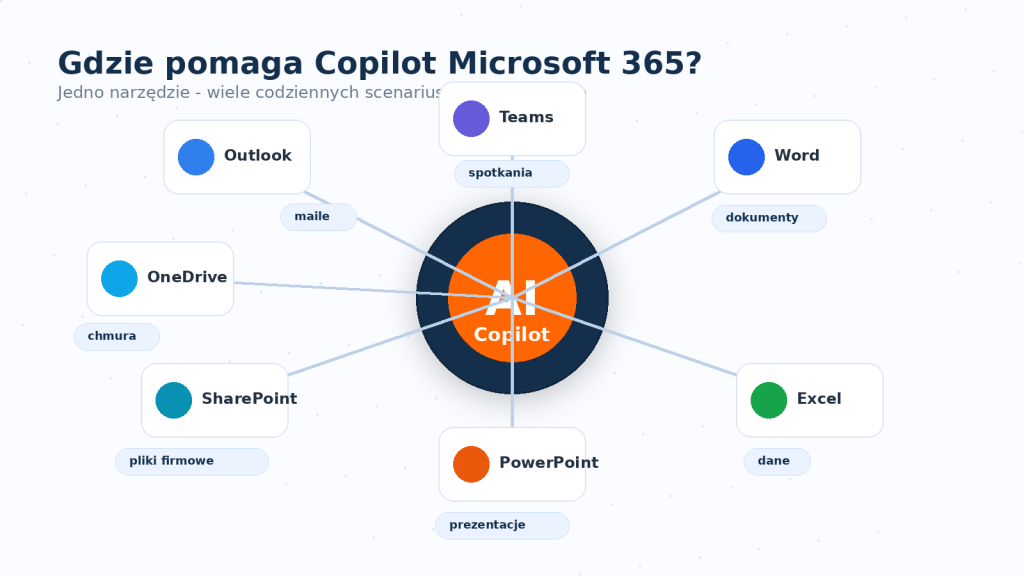
A well-implemented Microsoft Copilot in a company can reduce the time spent working on emails, meetings, documents, presentations and simple data analyses.
The most practical applications of Copilot appear where employees perform repetitive tasks daily: reading messages, preparing responses, summarizing meetings, creating documents, analyzing data, and searching for information. In a small or medium-sized company, this doesn't necessarily mean revolution. Sometimes the greatest benefit is that an employee can start a task faster, have a better outline, and waste less time retyping the same information.
Copilot in Outlook
Copilot in Outlook can help organize communications. Employees can ask for a summary of long correspondence, prepare a response with a specific tone, or extract key findings from a thread. For offices, sales, administration, or customer service, this can mean less time spent reading long emails and moving on to action faster.
Copilot in Teams
Copilot in Teams is particularly useful in high-volume meetings. It can help prepare a summary of the discussion, identify decisions, list tasks, and organize arrangements. For a manufacturing or service company, or an accounting firm, this means fewer situations where everyone remembers different things after a meeting. The requirement is simple: meetings should be conducted in an orderly manner, and participants must know how to use notes and summaries.
Copilot in Word
In Word, Copilot can help create draft documents, offers, regulations, procedures, notes, and instructions. It doesn't replace specialist knowledge, but it can shorten the process from blank paper to the first version of a document. For example, the administration department can more quickly prepare a draft procedure, while a salesperson can draft an offer, which they can then tailor to a specific client.
Copilot in Excel
Copilot in Excel can support table analysis, data interpretation, summarization, and correlation analysis. However, it's important to remember that the quality of the response depends on the quality of the data in the spreadsheet. If the table is chaotic, has merged cells, unclear headers, or haphazardly handwritten data, the AI may have difficulty interpreting it correctly. A well-prepared Excel framework is still essential.
Copilot in PowerPoint
In PowerPoint, Copilot can help you prepare a presentation outline based on a document, notes, or findings. This is useful for management, salespeople, and those preparing training or client reports. Instead of starting with blank slides, you can quickly prepare a structure, which a human can then refine visually and substantively.
Copilot in SharePoint and OneDrive
SharePoint and OneDrive are particularly important because that's where company documents often reside. Copilot in SharePoint can help with content collaboration, but only if the data is organized sensibly. If a company stores documents in users' private OneDrives instead of SharePoint libraries, it's difficult to expect AI to support teamwork in a predictable way.
Loop, Planner and To Do
In some scenarios, it also makes sense to use Copilot for tasks, planning, and notes. Microsoft Loop, Planner, and To Do can help translate meeting findings into concrete actions. For smaller companies, this is often more important than advanced AI features. After a meeting, if it's clear who has to do what, by when, and based on what materials, efficiency increases even without major disruptions.
Table - work without Copilot and with Copilot
Work area | Without Copilot | With a well-implemented Copilot |
Manually reading long threads and writing replies yourself. | Faster summaries, suggested answers, and better communication organization. | |
Meetings | Notes depend on the presenter, and tasks often get lost after the conversation. | Summaries, decision lists, and post-meeting tasks are available faster. |
Documents | Start with a blank sheet of paper, copying fragments from previous files. | Drafts of documents, offers and procedures based on the work context. |
Data in Excel | Manually searching for conclusions and preparing summaries. | Support in the analysis of tables, trends and key observations. |
Company knowledge | Information scattered across emails, chats and folders. | Accessing information is easier if data and permissions are organized. |
Security | Access problems often remain invisible. | AI shows more quickly where access is too wide, which is why an audit is necessary. |
What does a company need to sort out before implementing Copilot?
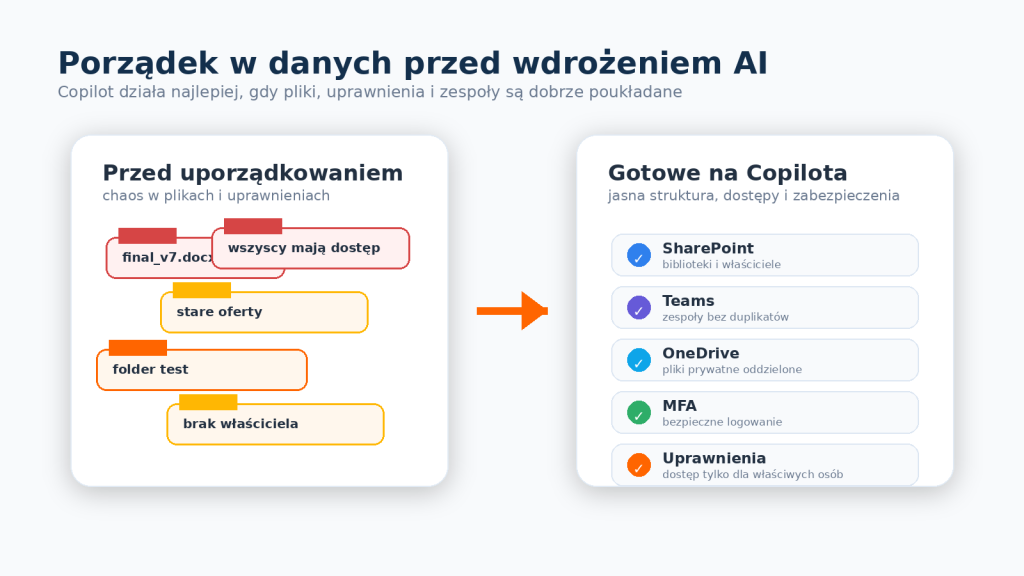
The biggest mistake when implementing Copilot is thinking that all you have to do is buy a license and wait for results. In reality, Microsoft Copilot works best in a company when Microsoft 365 is organized. It's a bit like a search engine in company documents. If documents are logically named, stored in the right places, and accessible only to the right people, searching helps. If everything is thrown into one folder, some files are outdated, and permissions are haphazard, the tool will only reveal the problem more quickly.
Before launching, it is worth checking whether Microsoft Copilot in your company will base responses on current files, appropriate SharePoint libraries and correctly assigned permissions.
The first area is the file structure in SharePoint and OneDrive. Company documents should be located in areas designated for teamwork, not in private user folders. Document libraries should be divided by department, process, or information type. For example, sales proposals should be stored differently from contracts, HR documents, and marketing materials differently.
The second area is permissions. This is the most important topic from a security perspective. Copilot shouldn't be considered a threat in itself. The problem arises when users have access to data they shouldn't see. If a sales employee has access to a management folder, or accounting to HR documents without a business need, AI can expose the consequences of such errors faster than traditional file manipulation.
The third area is Microsoft 365 groups and Teams. Many companies have created test teams, temporary channels, duplicate groups, and workspaces without owners over the years. Before implementing AI, it's worth examining which teams are still in use, who owns them, which channels make sense, and whether the naming conventions are understandable to users.
The fourth area is data quality. Copilot can help with typing, summarizing, and analyzing, but it won't automatically recognize that a file named final_final_final_v7.docx is out of date. Companies should establish rules for naming, archiving, and versioning documents. The fewer accidental copies, the greater the chance of meaningful answers.
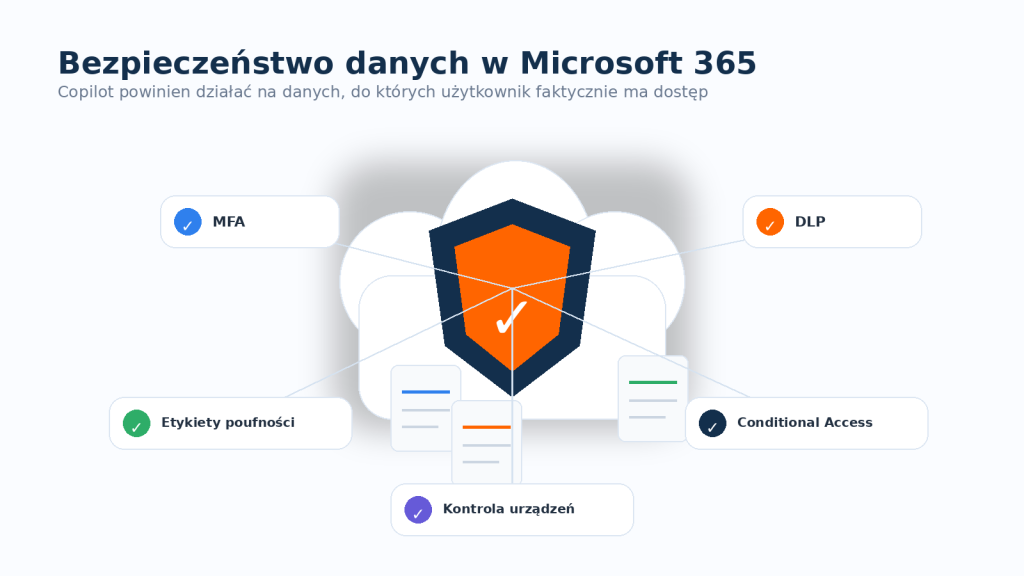
The fifth area is user account security. MFA, or multi-factor authentication, should be standard. This includes access policies, device control, application up-to-date enforcement, restricting logins from risky locations, and managing access for former employees. AI won't solve the problems of poorly protected accounts.
The sixth area is data backup, retention, and retention policies. Copilot is not a backup and should not be treated as such. The company still needs to understand how long it retains documents, how it recovers data after deletion, how it protects against user errors, and how it secures critical information. Implementing AI is a good time to review these processes as well.
The seventh area is user training. Even the best tool will be ineffective if employees don't know when to use it, how to write commands, what not to enter, and how to verify responses. Artificial intelligence in office work requires simple rules. Employees should understand that AI results are a guide, not an automatic truth.
Frame - what to check before implementing Microsoft Copilot?
- Do users have the correct Microsoft 365 base licenses and do the selected individuals actually need Copilot?
- Do mailboxes and apps work in a supported Microsoft 365 environment?
- Does SharePoint have a logical structure of libraries, departments and data owners?
- Do file permissions match employee roles?
- Are Teams teams organized and free of unused, test workspaces?
- Is MFA and basic access security enabled?
- Does the company have a policy on the use of AI, including a policy on confidential data?
8. Have users been trained in the practical use of Copilot and verification of results?
The most common mistakes when implementing Microsoft Copilot in your company
- Purchasing a license without preparing the environment. The company purchases licenses, launches the service, and assumes that users will discover the benefits themselves. The results are often poor because Copilot operates with unstructured data and unclear processes.
- Lack of permissions control. This is the most serious error. If access to files was granted inadvertently, Copilot could accelerate the disclosure of information to people who should not have had access to it.
- Sharing files too broadly. Shareable links, old shares, and unowned folders pose risks. Before implementing, review your sharing policies in SharePoint and OneDrive.
- Lack of employee training. Untrained users often enter overly general commands, expect pre-defined decisions, or don't know how to check the response. In these cases, the tool is considered weak, even though the problem lies in its use.
- Expecting AI to do everything itself. Copilot helps prepare a draft, summary, or analysis, but it doesn't replace employee responsibility. Decisions, data verification, and customer interaction still require a human.
- There's no AI policy. The company should define what data can be used in AI work, what not to include, how to mark up content created with Copilot, and who is responsible for the final version.
- No verification of results. AI can make mistakes, miss context, or suggest content that sounds good but requires correction. Copilot results should be verified, especially in proposal, accounting, legal, and HR documents.
- Failure to consider corporate data protection. DLP, confidentiality labels, retention policies, conditional access, and device control are not add-ons for large corporations. In smaller companies, they also help reduce the risk of data loss.
- There's no pilot plan. Implementing it all at once makes it difficult to assess the results. It's better to select a few departments or users, test real-world use cases, and only then expand the project.
10. Lack of measurement. If a company doesn't know what it wants to improve, it's difficult to assess success. It's worth measuring document preparation time, the number of meetings with good notes, the speed of response, or the quality of information flow.
The question of whether Microsoft Copilot is secure cannot be answered in a single sentence without looking at the company's configuration. Copilot itself operates within the Microsoft 365 ecosystem and utilizes the security, permissions, and data protection mechanisms available in that environment. The problem is often not the AI itself, but rather what the company has already configured or neglected. A secure Microsoft Copilot in the company requires access control, MFA, sharing review, and clear policies for the use of confidential data. Microsoft describes the data protection, privacy, and security policies of Microsoft 365 Copilot in its technical documentation.
The most important principle is simple: Copilot operates within the user's permissions. It shouldn't have access to data that the user doesn't have access to in Microsoft 365. However, if a user has too broad permissions, AI may include information from places that are formally accessible to them, even if they shouldn't be for business purposes. This is why an access audit is one of the most important preparation steps.
Before implementation, it's worth verifying who has access to management documents, finances, HR, sales proposals, contracts, customer data, and technical documentation. It's also important to verify shared links across the organization, guest access, legacy Microsoft 365 groups, and Teams teams without owners. In practice, it often turns out that some risks have existed for years, but no one has seen them in one place.
Data security in Microsoft 365 can be enhanced through MFA, Conditional Access, DLP, confidentiality labels, retention, Microsoft Purview, device control, and regular permission reviews. Not every company needs a full set of advanced features right away, but every company should have the minimum: secured accounts, structured access, limited external sharing, and clear policies for working with confidential information.
Training is also important. Employees should be aware not to thoughtlessly enter sensitive data, copy confidential information into unverified tools, or rely on AI responses as the final decision. Microsoft Copilot for businesses delivers the greatest value when it combines technical security with sound work practices.
From our perspective, a sound implementation begins with an audit of the Microsoft 365 environment. We then verify licenses, the structure of SharePoint, Teams, OneDrive, basic security, common permissions risks, and user readiness. Only after this stage can we responsibly decide who to enable Copilot for and in what scenarios it should support.
Microsoft Copilot makes the most sense in a company where work is information-driven. This doesn't have to be a large corporation. A small or medium-sized company can also have hundreds of emails, dozens of meetings, proposals, reports, client documents, spreadsheets, procedures, and internal arrangements. If employees spend a large portion of their day communicating and documenting, Copilot can help. Microsoft Copilot is most valuable in a company where employees regularly use email, documents, online meetings, and shared files.
The most common user groups are salespeople, administration, accounting, management, project coordinators, and customer service. Salespeople can more quickly prepare customer responses and proposal drafts. Administration can organize notes, letters, and procedures. Accounting can analyze reports more efficiently, although they must always verify data. Management can summarize meetings and prepare team communications more quickly.
Copilot makes sense for companies that use Outlook, Teams, Word, Excel, PowerPoint, SharePoint, and OneDrive but feel they're only partially utilizing them. Many organizations treat Microsoft 365 as email plus Office. However, a well-configured Microsoft 365 for businesses can be an environment for teamwork, automation, document management, and secure communication.
There are also situations where implementation is worth waiting. If a company has complete file chaos, lack of MFA, haphazard permissions, outdated user accounts, and a lack of data ownership, purchasing a Copilot license shouldn't be the first step. The foundations need to be in order first. Similarly, if users barely work in Microsoft 365 and most processes are on-premises without integration, the benefits may be limited.
It's also worth avoiding purchasing licenses for everyone at once. Often, a better solution is to conduct a pilot program for a select group: sales, administration, management, or those who create a lot of documents. This allows you to assess the real benefits, gather feedback, and only then decide on a broader AI implementation within the company.
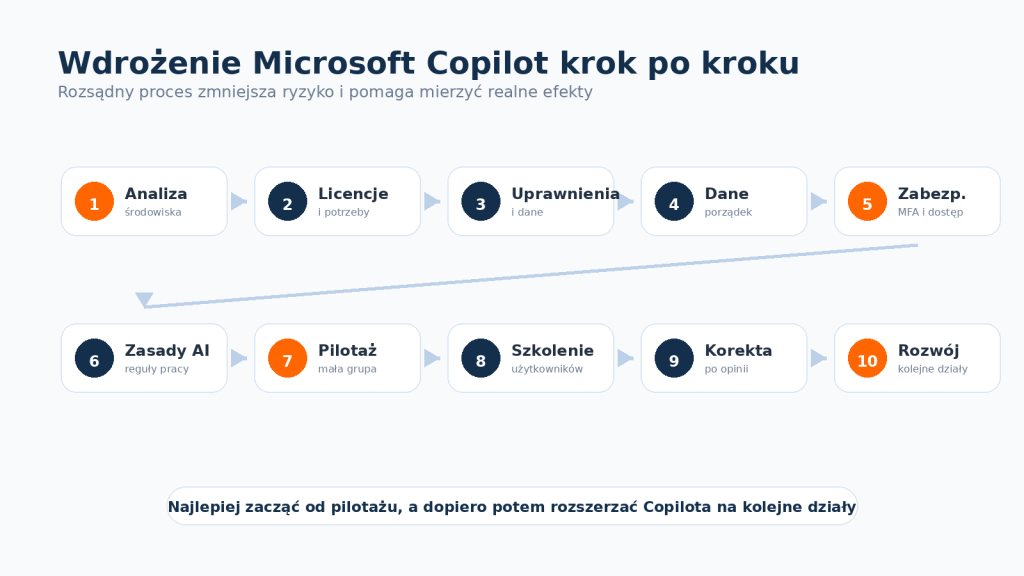
- Analyzing the current Microsoft 365 environment. First, you need to assess how the company uses email, Teams, SharePoint, OneDrive, Office applications, and security. Without this, it's difficult to determine the appropriate scope of implementation.
- Verify user licenses and needs. Not every employee needs to receive Copilot immediately. It's worth determining who actually uses documents, meetings, reports, and communications in ways that AI can help.
- Auditing permissions and data. This is a crucial step. You need to review document access, sharing links, groups, Teams teams, data owners, and potential areas of excessive access.
- Organize SharePoint, Teams, and OneDrive. Before launching Copilot, it's a good idea to organize document libraries, team names, folders, owners, and company file storage locations.
- Enabling security. MFA, basic access policies, device controls, sharing restrictions, and data protection policies should be implemented before broader AI use.
- Developing AI usage policies. The company should define what Copilot is used for, how employees should verify responses, what data is confidential, and what is prohibited.
- Pilot for a selected group of users. It's best to start with a team that has specific needs, such as sales, administration, or management. The pilot demonstrates real-world applications and challenges.
- Employee training: Users should learn practical examples of commands, rules for verifying results, AI limitations, and best practices for working with documents.
- Collect feedback and revise the process. After a few weeks, it's worth reviewing what's working, what's bothering you, where the data gaps are, and which scenarios offer the greatest time savings.
- Expanding the implementation to additional departments. Only after a proven pilot can Copilot be expanded to additional teams, updating policies, training, and security features.
Sales Department
The problem: salespeople handle numerous inquiries, prepare offers, and revisit previous discussions with the client. Copilot helps: it can summarize the email thread, help prepare a draft response, and propose a structure for the offer based on available materials. The result: shorter preparation time for the first draft of the document and a reduced risk of omitting important details. The salesperson remains responsible for the final content and tailoring the offer to the client.
Accounting or administration
The problem: administrative and accounting employees often work with emails, documents, reports, and repetitive procedures. How Copilot helps: it can prepare a draft of a letter, summarize a long document, help organize notes, or highlight the most important elements of a table. The result: less time spent editing repetitive content and easier work with large volumes of documents. In financial and formal areas, human verification is essential.
Management
The problem: managers have many meetings, reports, and decisions to make. How Copilot helps: it can prepare a meeting summary, gather key findings, help craft a team message, or organize strategic notes. The result: less time spent replaying information and moving from conversation to decision more quickly.
Customer service department
The problem: customer service responds to similar questions, analyzes ticket history, and prepares messages. How Copilot helps: it can support response preparation, summarize previous communications, and organize information from various sources. The result: faster response times, more consistent communication, and reduced employee workload on repetitive tasks.
How much can you actually gain with Microsoft Copilot?
The most honest answer is: there are significant gains, but not every company achieves the same results. Copilot doesn't automatically guarantee that every employee will save many hours a week. The actual effect depends on how the company operates, how much information it processes, how structured its data is, and whether users understand how to use AI.
The most noticeable benefits occur with communications and documents. Employees can prepare the first draft of an email, proposal, procedure, summary, or presentation more quickly. This doesn't mean that the finished text can be sent without reading. Rather, it means that people aren't starting from scratch. In many office tasks, this first step is the most time-consuming.
Meeting summaries offer significant value. In companies where decisions are made in Teams and then lost in conversations, good notes and task lists can improve work organization. Copilot can help capture findings, but the company still needs a culture of recording decisions, assigning responsibility, and revisiting tasks.
Another benefit is easier information discovery. If data is well-organized in Microsoft 365, employees can access necessary documents and findings more quickly. If data is disorganized, Copilot won't solve the problem on its own. At most, it can help diagnose it.
The greatest benefits come when Copilot implementation is combined with process alignment. The AI tool itself provides support. A well-prepared Microsoft 365 environment, organized files, appropriate permissions, security, and user training ensure that support translates into real change in daily work.
Implementing Microsoft Copilot can be considered a simple license purchase, but this is rarely the best approach for a company. If Copilot is to work with corporate data, it's crucial to consider licensing, access, document structure, security, training, and AI usage policies. These are areas where IT specialists can save a lot of headaches.
The first reason is licensing. Microsoft changes product names, prices, packages, and feature availability. Before implementing, it's important to verify which Microsoft 365 plans the company already has, which users qualify for the Copilot add-on, and whether a given feature is available in the selected version. This prevents companies from accidentally purchasing licenses. Please check the Microsoft Learn documentation directly for current requirements and licensing options.
The second reason is data. Copilot should work with the right documents, not random files from private folders, old attachments, and outdated versions. Preparing SharePoint, Teams, and OneDrive helps structure the environment so users can interact with AI in a predictable manner.
The third reason is security. Before implementation, it's worth checking whether users can see too much, whether external guests have excessive access, whether MFA is working, whether basic access policies are in place, and whether the company has policies for working with confidential data. These aren't formalities; they are the foundation for responsible use of AI tools for businesses.
We help companies prepare their Microsoft 365 environment for such implementations: we organize permissions, configure basic security, verify SharePoint and Teams, support licensing selection, and provide user training. This ensures that implementing AI in your company isn't a chaotic experiment, but a thoughtful improvement in everyday work.
Summary
Microsoft Copilot can be a very useful tool in a company, especially where employees write, read, analyze, and meet online extensively. It can speed up document creation, meeting summaries, email management, data analysis, and information retrieval. However, it's not a tool that can fix data clutter on its own.
Copilot delivers the greatest value when a company has a well-configured Microsoft 365, a well-organized SharePoint, well-designed Teams teams, appropriate permissions, and secured user accounts. Otherwise, AI can only expose existing problems more quickly.
Therefore, a sound implementation should begin with an audit and pilot. First, verify the environment, licenses, data, and user needs. Then, select a specific group, train them, gather results, and only then expand the implementation. This approach increases the chance that Microsoft Copilot for Businesses will become a real support tool, rather than just another tool the company pays for but no one uses in practice.