Configuring IMAP email can be frustrating, especially when you encounter terms like "IMAP server," "SMTP," "port 993," and "SSL," which don't mean much to a non-technical person. In practice, it's a very simple process: setting up your email so it works on your computer, phone, and browser simultaneously, without losing messages.
In this article, we'll explain step-by-step how to do it—from understanding the basics to specific configuration. No jargon, just a focus on what you actually need to enter and where errors most often occur. This will help you not only set up your email but also understand why it works (or why it didn't work before).
What is IMAP and when should you use it?
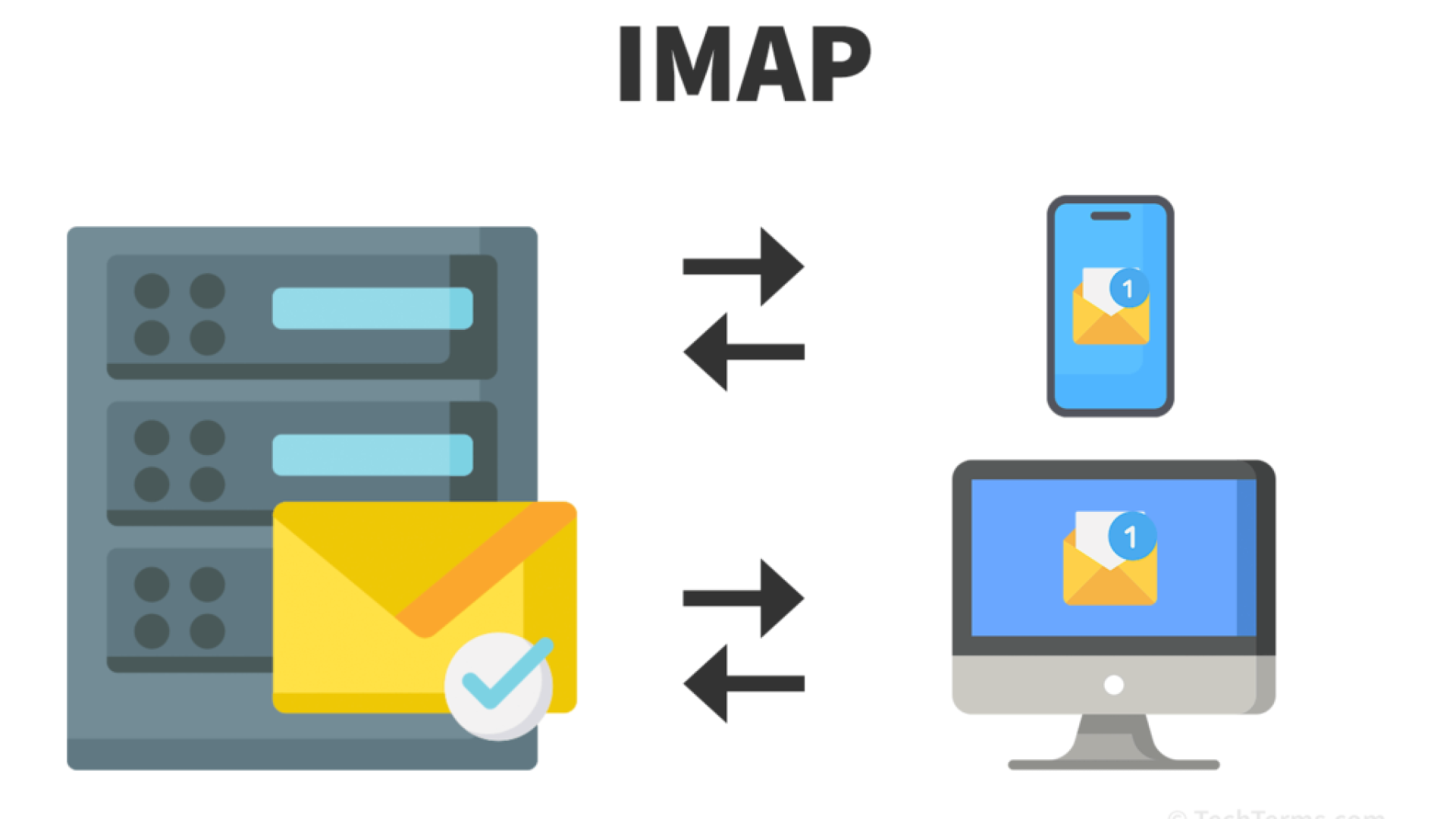
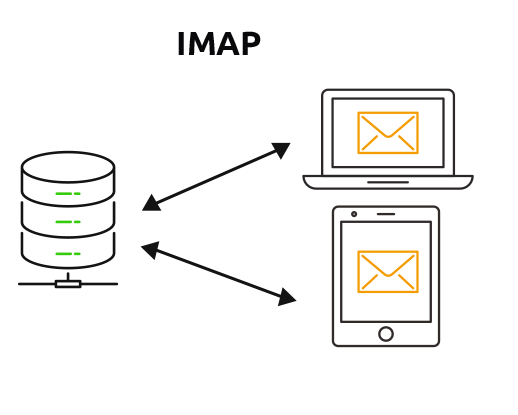
IMAP is one of the basic ways of handling email. The abbreviation comes from Internet Message Access Protocol – or, simply put, "server-based message access protocol." It sounds technical, but in practice, it means one thing: your emails are stored on the server and synchronized across all your devices.
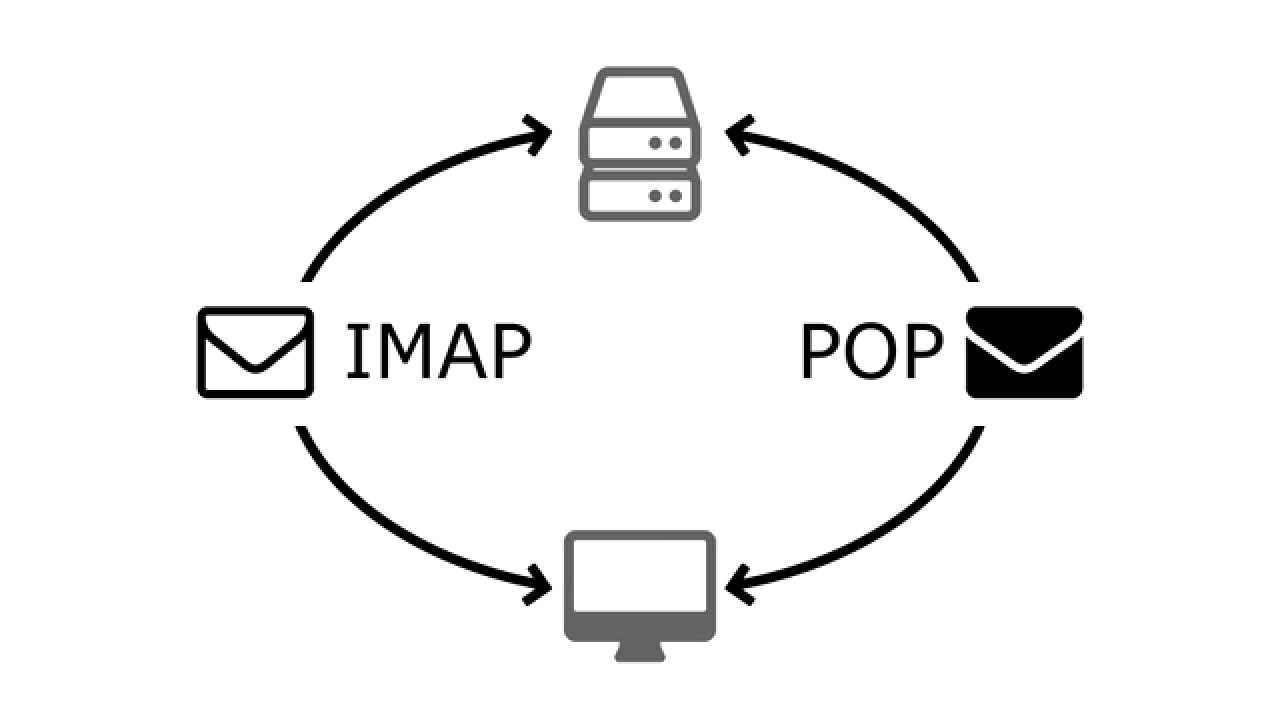
For comparison, the second popular abbreviation is POP (from Post Office Protocol). In this case, messages are downloaded to one device and often disappear from the server. This means that if you check your email on your computer, you may no longer see it on your phone.
IMAP vs POP – the most important difference
The simplest way:
• IMAP – synchronizes email across all devices
• POP – downloads email "permanently" to one device
In practice, this means that with IMAP:
• you see the same messages on your phone, laptop and browser
• deleting an email on one device deletes it everywhere
• folders (e.g. "Sent", "Offers") are the same on every device
When to use IMAP
IMAP is the standard these days and will be the best choice in most cases. Especially if:
• you use email on more than one device (e.g. computer + phone)
• you want to always have an up-to-date mailbox, regardless of where you log in
• you work with a company email service and message consistency is important
• you don't want to "lose" emails by accidentally downloading them to one device
When IMAP may not be ideal
There are also situations where IMAP will not be the best solution:
• you have very limited space on your mail server
• you need a local copy of all your messages "permanently"„
• you work offline for a long time (without internet access)
In such cases, POP is sometimes used as an alternative – but rarely these days.
What's worth remembering
The most important thing: IMAP does not store emails on your computer, only on the server. Your email program (Outlook, Thunderbird, phone) is only a "viewer" of this mailbox.
This has very practical consequences:
• changes are visible everywhere
• it is easier to regain access to email after changing devices
• configuration is more predictable
If you care about convenience and working on multiple devices, IMAP is the right choice in almost every case.
What data is needed to configure email via IMAP?
To configure IMAP email, you need a few specific details. Without them, even the best email program won't "guess" anything, and the configuration will fail.
Necessary information
• email address – e.g. biuro@yourdomain.pl
• mailbox password or application password (if you have additional security enabled)
• incoming mail server (IMAP) – e.g. imap.yourdomain.pl
• IMAP port – most often 993
• IMAP encryption – usually SSL/TLS
• outgoing mail server (SMTP) – e.g. smtp.yourdomain.pl
• SMTP port – most often 587
• SMTP encryption – STARTTLS or SSL/TLS
• username – usually full email address
Where to get this data
In practice, you have three sources:
• from your email provider (e.g. home.pl, nazwa.pl, Google, Microsoft)
• from the company's IT administrator
• from the hosting panel or service documentation
If you use company email, this data is often sent in the email when you set up your mailbox.
The most common mistakes
Most problems come from small things:
• entering the wrong port (e.g. 143 instead of 993)
• no encryption or wrong type (SSL instead of STARTTLS)
• providing only the login instead of the full e-mail address
• no app password when 2FA is enabled
You don't need to know "IMAP theory" to set up email - but you must have the correct technical data. They determine whether email will start working immediately or if a login error will occur.
Standard IMAP and SMTP Settings – What to Enter
At this stage, most users stop for the longest time – because there are specific fields to fill in, and an incorrect value in one of them can block the entire configuration.
The good news is that IMAP and SMTP settings are largely repeatable. In most cases, only the server name differs—the rest is very similar.
Most common settings
| Parameter | What to enter |
|---|---|
| IMAP server | e.g. imap.yourdomain.pl |
| IMAP port | 993 |
| IMAP encryption | SSL/TLS |
| SMTP server | e.g. smtp.yourdomain.pl |
| SMTP port | 587 |
| SMTP encryption | STARTTLS |
| Authentication | yes (login and password) |
| Username | full email address |
In short:
• IMAP (mail reception) – is responsible for downloading and synchronizing emails
• SMTP (mail sending) – is responsible for sending messages
• Port – „communication channel” – must be compatible with the server
• SSL/TLS / STARTTLS – connection security (data encryption)
If any of these items do not match, the post office will most likely:
• does not download messages
• either downloads but does not send
What's different between suppliers
Most often, only one thing changes:
• server address (e.g. imap.gmail.com, outlook.office365.com, imap.yourdomain.pl)
Ports and encryption usually stay the same, so you can use the table above as a starting point.
When settings may be different
There are situations where the values will differ:
• older or non-standard servers may use port 143 instead of 993
• some configurations require SSL instead of STARTTLS (or vice versa)
• in services such as Microsoft 365 or Gmail, modern login is often used (OAuth2 instead of the classic password)
What's worth remembering
If you are not sure what to enter – the most important thing is the mail server from the provider. The rest of the settings will in most cases follow this pattern:
• IMAP: 993 + SSL/TLS
• SMTP: 587 + STARTTLS
These are the values that work in the vast majority of configurations and are a good starting point for any box.
How to configure IMAP email step by step
The email configuration itself IMAP It usually boils down to one simple process: you add an account, select the IMAP type, enter the incoming and outgoing mail server details, and finally, check whether receiving and sending messages is working. Many programs automatically fill in some settings, but for less common mailboxes, you have to do it manually.
Step 1 – prepare all data for the mailbox
Before you begin, prepare your email address, password, IMAP server, SMTP server, ports, and encryption type. This is important because without this information, your email program may not complete setup or may set up your account incorrectly. Apple and Mozilla explicitly state that for manual setup, you should know your account settings in advance or check them with your email provider.
Step 2 – add a new account in your email program
In your email program or phone app, select the option to add a new email account. If you're using a popular provider, some apps will attempt to automatically configure the account based on just the address and password. This works in Thunderbird and on the iPhone with popular email services, among others.
Step 3 – Choose IMAP, not POP
At the account type selection stage, select IMAP. This is important because some programs still offer both IMAP and POP options. If you need to sync email between your computer, phone, and webmail, IMAP is the right choice. Microsoft and Google still offer both protocols, but IMAP configuration is standard for modern email use.
Step 4 – Enter the incoming mail server
In the incoming mail field you enter the server IMAP, port and encryption. Most often it will be port 993 and encryption SSL/TLS, but the most important thing is the data provided by the email provider. Microsoft provides manual IMAP settings for Outlook.com, while Mozilla shows that with manual configuration, you can enter these details yourself if the program does not detect them automatically.
Step 5 – Enter the outgoing mail server
Then you complete the server SMTP, i.e. sending messages. Very often this will be the port 587 and encryption STARTTLS, but again, the most important thing is the data from the provider. In Outlook, you can later go into advanced settings and compare the IMAP and SMTP ports with those provided by your email provider.
Step 6 – enter your login and password in the correct form
The most common username is full email address, not just the name before the @ sign. It's a small detail, but this is often where the login error occurs. Mozilla's support materials indicate that when configured manually, the username is usually the full email address.
Step 7 – pay attention to the login method
Not every mailbox accepts a standard password in its classic form anymore. Microsoft states that Outlook.com requires modern authentication. OAuth2, and in Outlook for Windows, with two-factor authentication enabled, you may need an application password or a one-time code from your provider. This means that the correct webmail password isn't always sufficient in the email client.
Step 8 – Save settings and perform a simple test
After saving the configuration, check two things: whether the program is downloading new messages and whether it can send a test email. This is important because sometimes reception is working correctly, but the problem is only with SMTP. If the application shows a connection error, go back to the server, port, encryption, and login settings – this is where the cause most often lies.
For most users, the best order is very simple: first try automatic configuration, and only if that fails, proceed to manually entering IMAP and SMTP. If, despite the correct details, the account still won't be added, the problem is most likely not IMAP itself, but rather a lack of access to this feature on the account, an incorrect login method, or incorrect settings from your email provider.
IMAP configuration in the most popular programs
The principle behind it is similar across the board: you add an account, select IMAP, enter your incoming and outgoing mail server, and finally, verify that receiving and sending messages are working. The main differences lie in where to find the appropriate options and how much help each program provides with configuration.
Outlook
IN Outlook Some accounts are configured automatically, but with corporate mailboxes and less common domains, you often need to check or adjust settings manually. Microsoft states that account settings allow you to change the server name, port, password, and authentication method—the very things that most often cause problems.
The most important thing for users is that Outlook can work properly even if the initial configuration wasn't perfect – but you need to go into the server settings and compare them with the data from your email provider. This is a good option for people working on Windows and using work email, as Outlook integrates well with calendar, contacts, and other Microsoft services.
What is worth knowing in practice:
• Outlook often detects the account itself, but does not always select the correct settings for corporate mailboxes.
• If your mailbox is receiving messages but not sending them, the problem is usually with SMTP, port or authentication.
• After adding the account, it is worth going straight to the server settings and checking whether the server names, ports and encryption match.
Thunderbird
Thunderbird is very convenient for those who want more control over their configuration. Mozilla explains that the program first attempts to automatically set up your account based on your email address. If that fails, you can switch to manual configuration and enter your servers, ports, and connection type yourself.
This is a major advantage because the user isn't locked into the program's automation. If something isn't working, it's easy to see exactly what was entered. Thunderbird works well for corporate mailboxes, custom domains, and less common configurations where Outlook or the phone app might not provide the correct information. Mozilla also demonstrates that after manually entering data, you can use the settings retest function, making it easier to quickly identify errors.
What is worth knowing in practice:
• This is one of the most convenient programs for manual IMAP configuration.
• Well suited for corporate mailboxes and custom domains.
• It is easy to check whether the problem is with the server, port or login.
iPhone and iPad
On Apple devices, setup is usually straightforward if you're using a popular email provider. Apple says the Mail app can automatically configure your account after entering your email address and password. However, if your provider isn't recognized, you can add the account manually, selecting IMAP or POP, and then entering the incoming and outgoing server details.
What's important for the user is that the iPhone initially tries to "make life easier," but if the automation fails to find the settings, you need to have specific technical details ready. That's why, for corporate emails, it's a good idea to ask your administrator or hosting provider for the full IMAP and SMTP settings in advance.
What is worth knowing in practice:
• With Gmail, iCloud or other popular services, configuration is usually done automatically.
• With corporate email, you often have to enter manual configuration.
• If Mail can't find the settings, it doesn't mean there's a problem – you usually just need to enter them yourself.
Gmail and other modern email services
In the case of Gmail, it's worth remembering one important change. Google informs that as of January 2025, IMAP in Gmail is permanently enabled for personal accounts, and instead of entering your regular username and password, it's recommended to log in using "Sign in with Google." Google also notes that older email clients may not support modern security features, so setup may fail even if the password is correct.
This is a valuable tip for other modern email services as well: an email address and password alone aren't always enough. Sometimes you need to log in via your provider's account, an app password, or a newer version of your email client.
What is worth knowing in practice:
• If Gmail won't add itself to your email program, the problem may be with your login method, not IMAP itself.
• When using modern services, it is worth looking for the option of logging in via a Google or Microsoft account.
• Your old email client may not support current security features and the configuration will fail.
If you just want to get your email up and running quickly, the easiest way to start is with automatic configuration. If that doesn't work, Thunderbird is usually the best tool for manually setting up IMAP, as it offers a lot of control and clearly displays what you've entered. Outlook is good for office work, and iPhones and iPads are convenient where the email provider is automatically recognized. The bottom line is that regardless of the program, you always need the same basics: the correct IMAP server, SMTP server, ports, encryption, and the correct login method.
What can you do now
If you want to quickly launch IMAP email without unnecessary searching for causes, focus on a few specific steps:
• prepare and check the data from the provider – IMAP server, SMTP, ports and encryption
• set up your account again, preferably starting with the automatic option
• make sure you log in with your full email address and correct password (or app password)
• after configuration, perform a test – receive the message and send a test email to an external address
If, despite this, your email still doesn't work, go back to your settings and compare them point by point with the data from your provider - this is the fastest way to find the error.
Frequently asked questions
In most cases, yes - IMAP is now the standard and a better choice. It allows you to sync email across multiple devices, ensuring you always have up-to-date access to your messages. POP can be useful in very specific situations (e.g., offline archiving), but for everyday email use, IMAP is definitely more practical.
The most commonly used port for IMAP is 993 with SSL/TLS encryption. Older configurations may use port 143 without encryption, but this is currently rare and not recommended.
Yes. IMAP is only responsible for receiving and synchronizing messages. Sending email requires a separate server – SMTP (usually port 587).
This is a very common problem. It most often indicates an error in SMTP configuration—incorrect port, lack of authentication, or poor encryption. It's worth checking your outgoing server settings.
Yes, and that's one of the biggest advantages of IMAP. You can use the same email on your computer, phone, and browser, and all changes will be synchronized.
In this situation, the problem is usually not with the password itself. Common causes include:
• App password required instead of regular password
• two-factor authentication (2FA) enabled
• no support for modern login in the email program
It's worth checking your account security settings or trying to add it again using a different login method.