Screen recording in Windows 11 doesn't require specialized knowledge or lengthy setup. The system offers built-in tools, and if you need more control, you can reach for proven third-party solutions. Below, you'll find 3 easiest ways to record your screen, described briefly and without unnecessary details.
Screen Recording Method 1: Snipping Tool
This the simplest and the fastest way, because the tool is built into Windows 11. It does not require installing additional programs or configuration.
How it works in practice:
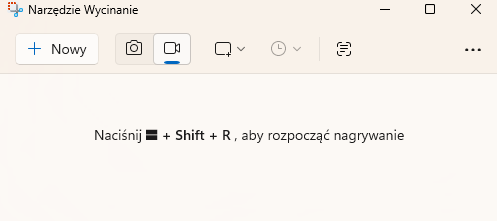
• run Snipping Tool from the Start menu or shortcut Win + Shift + R,
• select the screen recording icon,
• select the area you want to record and click Start,
• when finished, click Stop and save the file to the desired location.
Recordings are saved as video files (MP4). This solution is perfect for short instructions, demonstration of a problem or a quick recording fragment of the screen, with the ability to turn on or off system sounds and the microphone (this option appears after selecting the recording area, just before starting recording), but without advanced settings.

Method 2: Xbox Game Bar + Screen Reader
This solution is quick and comfortable, but it has its clear limitations – it is worth knowing them before using them. Xbox Game Bar is built into Windows 11 and works well with screen readers, which also makes it useful for people with accessibility needs.
How it works:
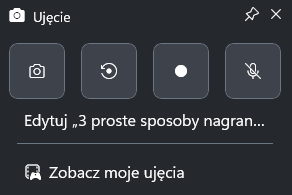
• you start and stop recording with a shortcut Win + Alt + R, (abbreviation Win + G we start the recording menu)
• you don't have to open additional windows or select an area,
• recording start and end messages are available for screen readers.
Most important limitations (honestly):
• does not record the desktop or File Explorer,
• only works within specific application,
• has very limited quality and sound settings.
Video files are automatically saved in the folder Video → Captures.
This is a good option if you want quickly record the program's operation, web application or game, but it will not work for universal instructions covering the entire system.

Method 3: External tool (e.g. OBS Studio)
This the most extensive option, but also the only one that gives you full control over recording. OBS Studio is a free, open-source tool often used for streaming, but it's also great for screen recording.
What recording looks like in a nutshell:
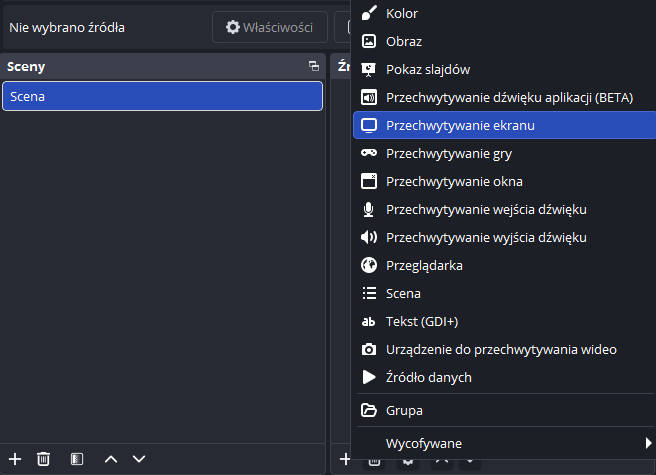
• you install OBS and select the image source (entire screen, window or application),
• optionally add sound sources (microphone, system sound),
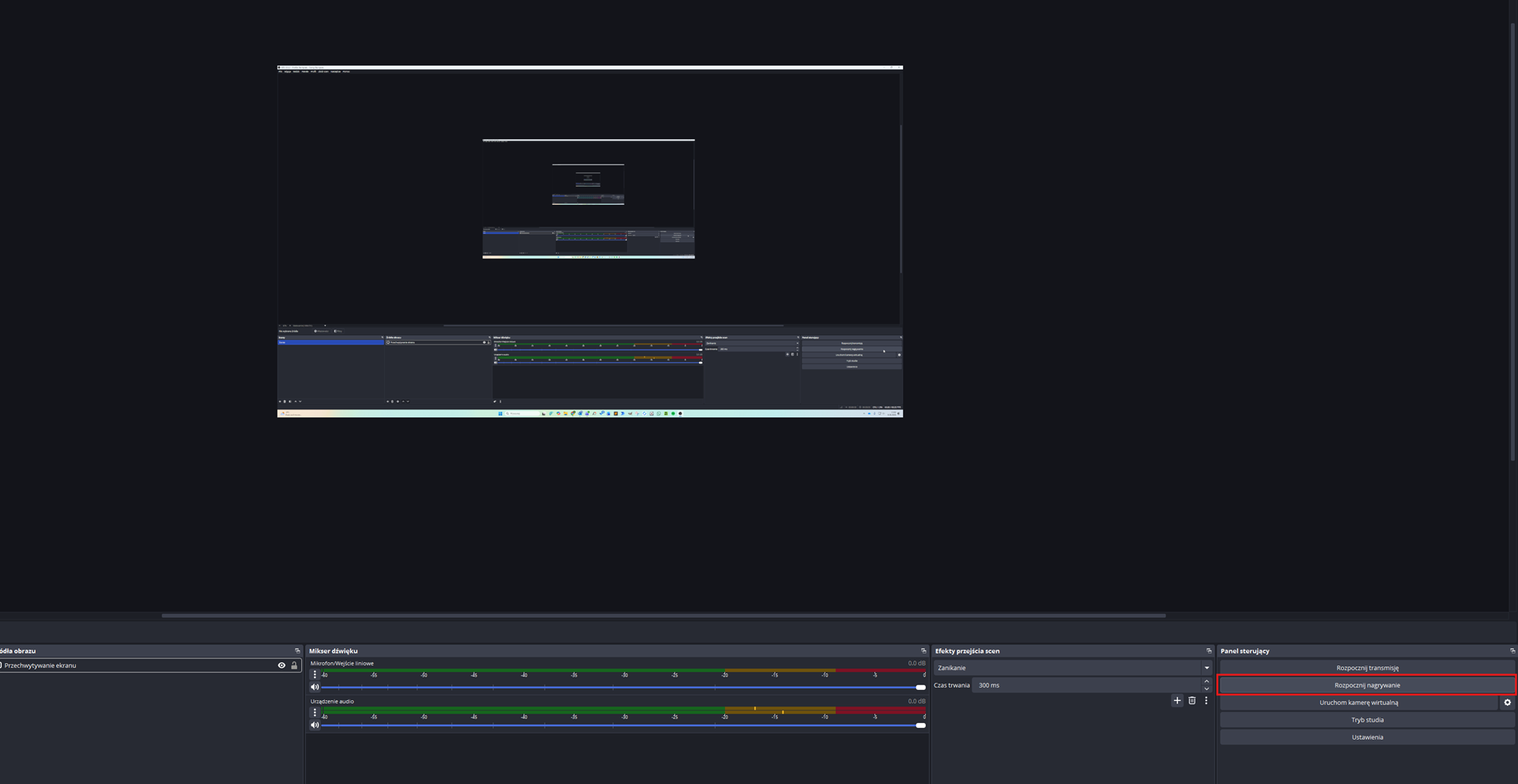
• you click Start Recording, and after finishing Stop Recording.
Key Features:
• records the entire desktop, any applications and multiple sources simultaneously,
• allows you to set the quality, file format and saving folder,
• requires at the moment of configuration and is less click-and-burn than built-in tools.
This is the best choice when recording longer instructions, training or technical materials, and you don't mind spending a few minutes on settings.
Which option to choose
If you care about quick recording without installing anything, the best choice will be Snipping Tool – perfect for short demonstrations and simple instructions.
When you want record a specific application and you use screen reader, a sensible option is Xbox Game Bar – fast, but with clear limitations.
If you need full control over the recording, sound and image quality, choose external tool, such as OBS Studio – at the cost of a short setup you gain the greatest possibilities.
FAQ - questions and answers
Yes. You can use the Snipping Tool or Xbox Game Bar - both are built into the system.
No. Xbox Game Bar only records the active application - it does not support the desktop or File Explorer.
Snipping Tool - the fastest, without configuration or unnecessary settings.
An external tool, such as OBS Studio, offers the most control over image and sound.