
Choosing a business email address rarely begins with a cold analysis. More often, it begins with a simple question: „Is Gmail or Outlook better?” And this is where the problems begin, because behind this apparent simplicity there are hidden two completely different approaches to work, safety and cooperation in the company.
For some, Gmail is synonymous with speed and simplicity, while for others, Outlook is synonymous with order, control, and integration with the rest of the corporate environment. But in practice, we do not compare two boxes, but the entire work ecosystem: Google Workspace vs. Microsoft 365, services versus applications, labels versus processes, convenience versus predictability.
This article won't be about a "holy war of tools." Instead, we'll show you:
• where Gmail actually makes life easier,
• where Outlook gives your company an advantage,
• and why shared mailboxes, archiving and team work rules are more important than the appearance of the interface.
Choosing a corporate email solution is a long-term decision, with consequences that will be felt for years to come. Therefore, instead of promises and buzzwords, we'll focus on the facts. Below, you'll find a practical comparison of Gmail and Outlook for businesses—from the perspective of daily use, security, and management.
Gmail or Outlook from scratch – What are both solutions really like?
Many companies try to decide by comparing things that aren't quite on the same level. The result? A shortcut decision, followed by months of frustration, rework, and additional costs.
Gmail and Outlook are not two identical "inboxes"„
At first glance, everything looks simple: Gmail or Outlook. In practice, however:
• Gmail this cloud email service, which is part of the package Google Workspace.
• Outlook this application (email client), which most often acts as an interface to the mailbox Exchange Online within the framework Microsoft 365.
It's a bit like comparing car with a dashboard. One is the entire service, the other is the tool used to operate it. Therefore, a fair comparison is always:
Google Workspace (Gmail) vs Microsoft 365 (Exchange + Outlook)
and not just "Gmail vs Outlook".
Why is this distinction so important to the company?
Because the decision does not only concern:
• appearance of the box,
• employee habits,
• or "what was before".
However, it concerns:
• team work model (do you work on common boxes, delegations, processes),
• data security and control (retention, archive, access after employee departure),
• scalability (what happens when the company grows, changes structure or an audit occurs).
If you don't separate this from the start, it's easy to fall into the trap of thinking:
„Gmail is simpler” or „Outlook is more corporate” – without understanding Why.
Service vs. App – Different Philosophies of Work
To put it simply:
• Google Workspace focuses on simplicity, speed, and working "in the browser." Email, calendar, and files are closely linked, and many things happen automatically.
• Microsoft 365 It emphasizes structure, roles, and processes more strongly. Outlook is the communication management center, and the mailbox is part of a larger ecosystem (calendars, tasks, Teams, SharePoint).
It's not a question of what is "better", but what better suits the way your company operates.
The most common mistake at this stage
Companies very often:
• they test Gmail and Outlook only on one user,
• they only evaluate the interface and convenience,
• they ignore the topic of shared mailboxes, archives and access rules.
And then the questions arise:
„Why can’t we easily manage sales@?”
„Why doesn’t anyone have full access to correspondence after an employee leaves?”
„Why is the archive working differently than we expected?”
In the next chapters we will move on to specific differences in everyday work, but this distinction – service vs application – is the foundation of the entire comparison. Without it, any further analysis will be simply incomplete.
Everyday work: speed, convenience and inbox organization
Problem: „Everything seems to be working, but people are losing emails, can't find anything, and keep asking where it was.”
It is the day-to-day work with the box – not security or licensing – that determines whether the team will be satisfied with the choice.
Speed and "lightness" of working with the box
On a purely functional level, the differences become apparent very quickly:
• Gmail (within Google Workspace) It runs almost exclusively in the browser. It's fast, responsive, and resistant to slowdowns, even with a large number of messages.
• Outlook (in the Microsoft 365 ecosystem) offers more options, but can be heavier – especially in the desktop version with many boxes, add-ons and extensive rules.
In practice, Gmail often wins in terms of "feel of speed," while Outlook wins in terms of control. It's like comparing a lightweight city car with a larger station wagon: both will get you there, but in different styles.
Labels vs. Folders – Two Different Ways of Thinking
This is one of the key differences that affects the order in the mailbox:
• Gmail uses labels – A single message can have multiple labels at once. This facilitates search and flexible organization.
• Outlook is based on folders – Email "stacks" in one place. The structure is more hierarchical and predictable.
For teams that:
• they work quickly,
• they rarely archive manually,
• rely mainly on the search engine
labels are sometimes more convenient.
For companies that:
• have established processes,
• they work on shared boxes,
• they want to clearly see "what is where"„
folders give a greater sense of control.
Searching and finding emails
Here the differences are clear:
• Gmail is famous for a very effective search engine, which often "knows what you're looking for," even if you only remember a fragment of the content.
• Outlook also offers advanced filters, but requires more discipline in organizing folders and topics.
In companies where the mailbox serves as a "knowledge archive," search engines are truly valuable. If employees can't quickly find old correspondence, they're wasting time—regardless of the tool.
Rules, automation and order
Both solutions offer rules and filters, but with a different philosophy:
• Gmail simplifies rules and encourages automatic labeling.
• Outlook allows you to build more complex scenarios (moving, categorizing, flags, integration with tasks).
Outlook tends to be more "office-oriented"—good for situations where email is part of the process. Gmail is more effective where email is a quick communication tool rather than a formal workflow.
Working on multiple boxes and devices
In everyday use, details are also important:
• Gmail handles multiple accounts very well in one browser and on one phone.
• Outlook works better with many boxes at the same time (e.g. private, company, shared) in one view – which is important in offices and service departments.
It's a little thing that can save or take a lot of time over the course of a week.
Application at this stage
At the level of everyday work:
• Gmail wins in simplicity, speed and search.
• Outlook gives you more control, order and expandability.
And this is where many companies make a mistake: they choose a tool for single-user comfort, instead of under the team's way of working.
Shared mailboxes and teamwork on emails – a critical choice point
Problem: „"We have sales@ and invoices@, but no one really knows who should reply, who has already replied and where the correspondence history is." It is in the shared mailboxes of the company they either organize communication or generate chaos.
A shared mailbox is a process, not just an email address
In a company, a shared mailbox isn't for "reading emails." It's for:
• customer service,
• continuity of communication during employee turnover,
• control of responsibility and deadlines.
If the tool doesn't easily support this, the team starts creating workarounds. And workarounds always cost time.
How Microsoft 365 approaches this
IN Microsoft 365 shared boxes are the solution native:
• several people can work on one box,
• shipping "as" or "on behalf of" works predictably,
• access can be granted and revoked without losing history.
The business effect is simple:
the email is not assigned to a person, but to a process. And this makes scaling the team much easier.
What does it look like in Google Workspace?
IN Google Workspace the topic of shared boxes is realized differently:
• through groups, shared access or hybrid solutions,
• more flexible, but also less clear.
For smaller teams, this can be sufficient. However, larger teams often face challenges:
lack of clear information about who is responsible and what has already been done.
Where companies fail most often
Regardless of the platform, failure looks similar:
• one mailbox logged in on several computers,
• no response and archiving rules,
• private folders instead of shared order.
This isn't a technology issue. It's a result of the tool we choose. without thinking about the process.
Key takeaway
If in a company:
• there are addresses like sales@, office@, invoices@,
• several people work on one correspondence,
• continuity and responsibility are important,
this the way shared mailboxes are handled should be one of the main selection criteria, not an addition "to deal with later".

Security and Compliance: Retention, Archiving, Auditing – Questions That Come After an Incident
As long as everything is working, email security is "in the background." It's only when someone deletes an email, leaves the company, or a security audit occurs that the anxious questions begin: Can it be recovered, who had access and what do we actually have in the archive?
Retention – what happens to emails over time
Retention is a set of rules that define:
• how long messages are stored,
• when they go to the archive,
• whether and when they can be permanently deleted.
IN Microsoft 365 Retention is highly formalized and assigned to the entire organization or user groups. This is a "top-down" approach – good where consistency and control are important.
IN Google Workspace Retention mechanisms are easier to understand, but require conscious configuration. Without it, the user often has more influence over what disappears from the inbox.
The conclusion is simple: retention doesn't work by itself. It must always be driven by a business decision, not by default.
Archive – not a backup, not a trash can
A company email archive isn't just about "organizing your inbox." Its purpose is to:
• securing historical correspondence,
• protection against accidental deletion,
• retention of data after an employee leaves.
Microsoft and Google approach this differently, but the goal is the same. The key question is:
whether the archive works independently of the user, or still depends on his actions.
For a company, the difference is huge – especially in the event of disputes, complaints or audits.
Audit and eDiscovery – a topic that no one wants but everyone needs
An audit means the ability to check:
• who had access to the mailbox,
• when and what was removed,
• what was the full history of correspondence.
Both Microsoft 365 and Google Workspace offer tools for such analyses, but:
• require appropriate licenses,
• must be correctly configured in advance,
• they do not work "backwards" if they were not enabled.
This is why questions about auditing arise always after the incident, not in front of him.
The most common mistake companies make
Companies often assume that:
• "the cloud stores everything itself",
• "if something disappears, it will come back",
• "if there is a problem, IT will come up with something.".
In practice, the lack of clear retention and archiving rules means that the tool stops protecting the company, and begins to protect only the current user convenience.
Application
Corporate email security is more than just anti-spam and passwords.
These are decisions about:
• how long do you keep data,
• who has access to them,
• can you recreate and document them?.
Costs and licenses: what does it look like in practice?
The topic of costs is often reduced to a general statement: "Google is cheaper" or "Microsoft is more expensive," but without specifics and business context, this doesn't mean much.
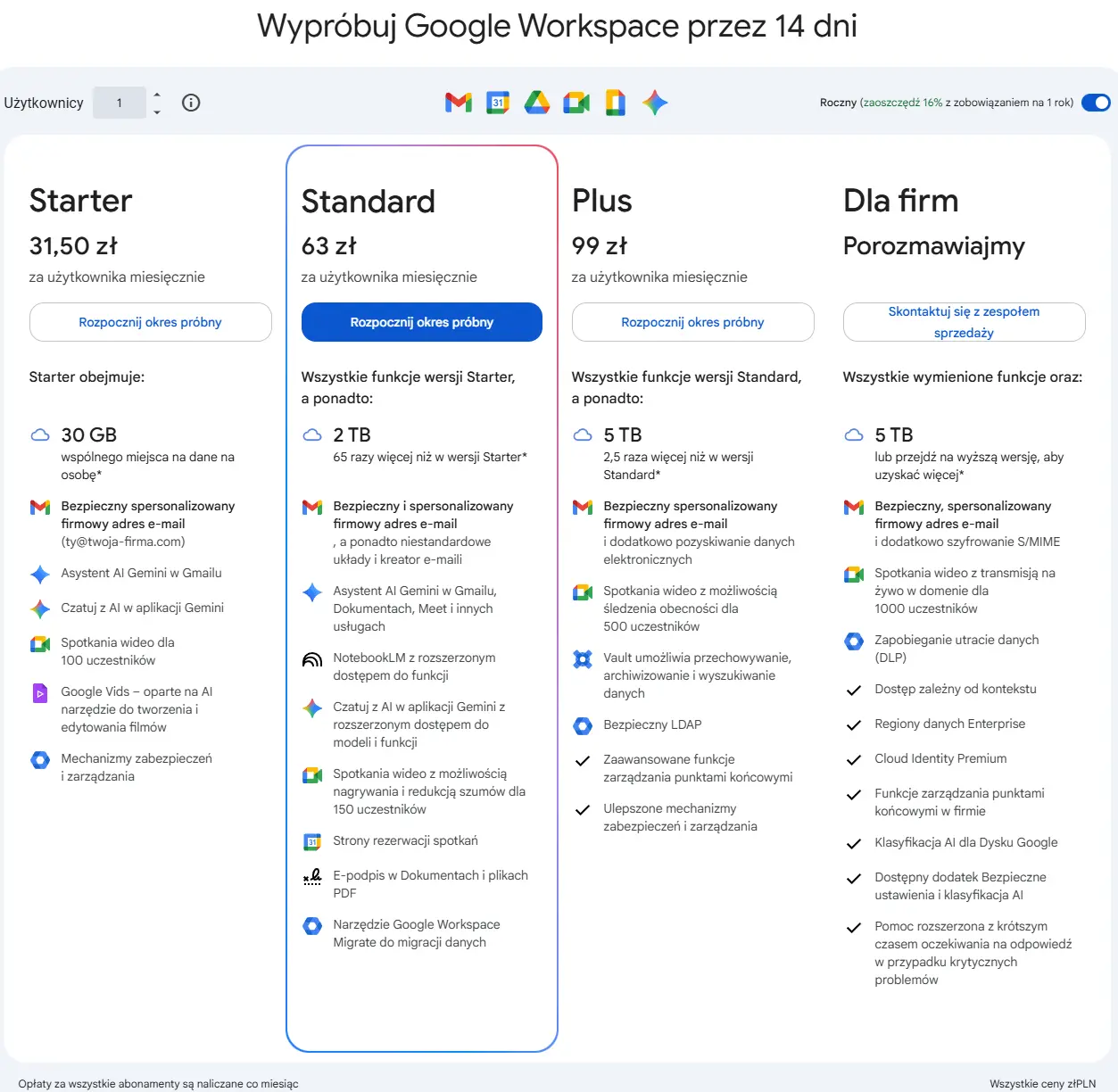
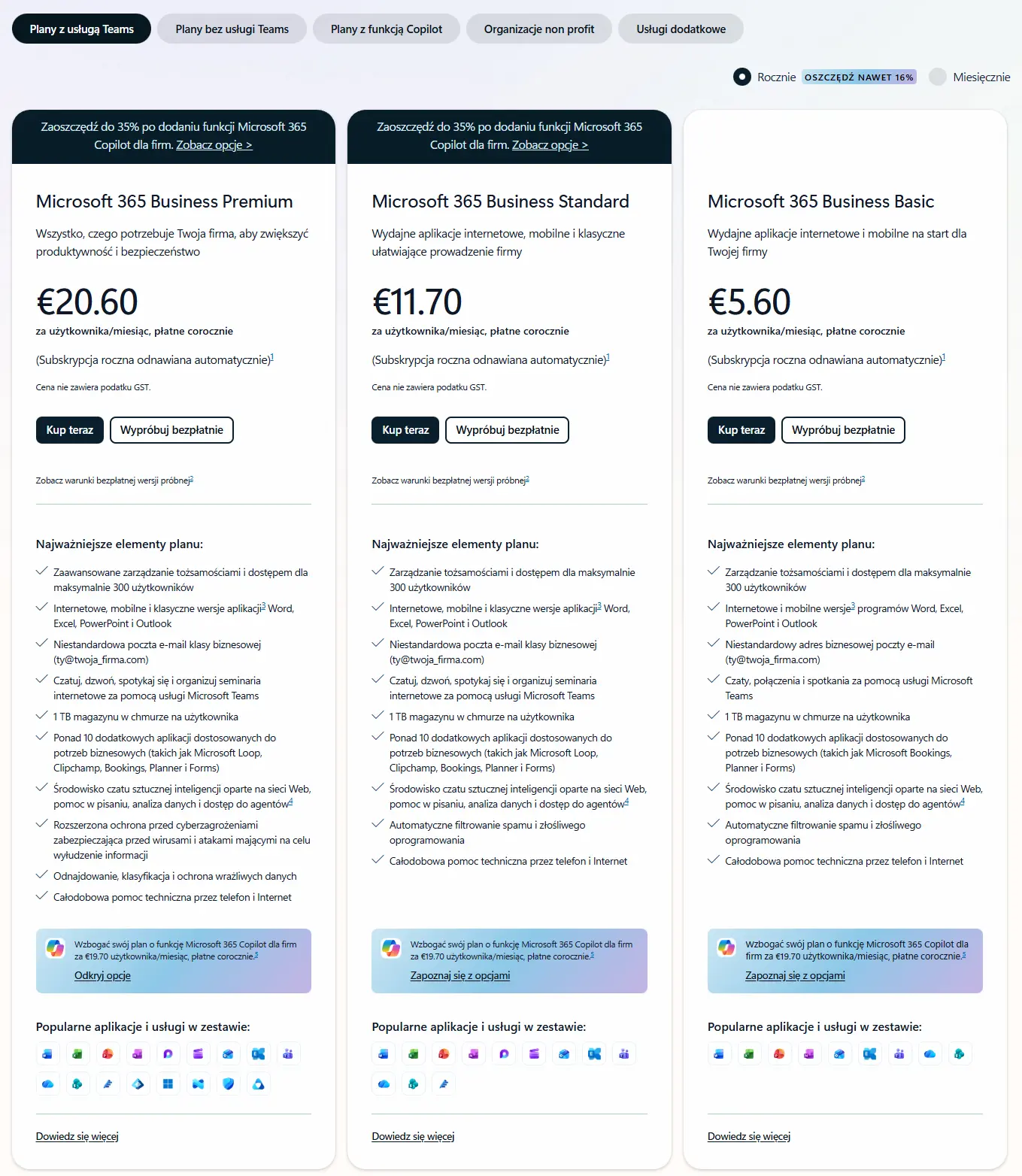
Corporate email in a business environment means subscriptions per user, and the price depends on the plan and features. Both platforms have similar price points, but differ in the range of tools and level of protection. The licensing option is also worth mentioning – you can purchase a monthly license or a yearly one (paid in advance), with annual licensing costing several to a dozen zlotys less per month.
Google Workspace – Basic Pricing
In Google Workspace, you pay per user depending on the chosen plan (the prices given are indicative and should not be taken for granted, the current price list can be found on the official website manufacturer's website – prices vary depending on the form of licensing):
• Business Starter ~ approx. €7/month. – basic business email with Gmail, 30 GB of space and collaboration tools.
• Business Standard ~ approx. €14/month. – more space (2 TB in the cloud) plus additional teamwork tools.
• Business Plus ~ approx. €23/month. – advanced security tools and greater IT capabilities.
• Enterprise – prices agreed individually for larger organizations.
This is a „clear and linear” approach: the more features and greater security, the higher the price threshold.
Microsoft 365 – License Structure
Microsoft 365 also has subscription models per user (the prices given are indicative and should not be taken for granted, the current price list can be found on the official website manufacturer's website – prices vary depending on the form of licensing.) For companies, the most common are:
• Business Basic ~ approx. 6-7 €/month. – Exchange webmail with Teams and 1 TB OneDrive.
• Business Standard ~ approx. €14/month. – additionally full Office applications (Word, Excel, PowerPoint) for your computer.
• Business Premium ~ approx. €24/month. – advanced security and device management.
Microsoft also has more variants and security options tailored to company size, allowing you to mix licenses in one environment.
What does it look like in practice?
• At the lowest level, both solutions start approximately €6–7 per month per user.
• At the mid-level (more complete work environment) prices are close: ~12–14 €.
• For a "full security and tools package", Microsoft is often more expensive (~ approx. €24) than Google (~ approx. €23).
What to look at, not just the price
• Features included in the plan – prices themselves mean nothing without the context of what they include (e.g. security tools, amount of storage, applications).
• Implementation and migration costs – often represent a greater expense than the subscription itself.
• Shared mailbox licenses – it is not always necessary to purchase full licenses for functional accounts (especially in Microsoft 365).
Although the base prices are comparable, is the range of tools and features you get for a given amount, determines the value for the company. A simple email plan may cost similarly, but larger teams and organizations will quickly discover differences in tools, security, and support – and this impacts real operating costs.
New Outlook vs classic Outlook – does it even matter in the company?
Some users see the "new Outlook," others stick with the classic. Some praise it, others complain. And the question arises: Is this a real business problem or just noise?
Where did all the buzz around the new Outlook come from?
New Outlook It's an attempt to unify the email experience across devices and simplify the app. It's lighter, more web-based, and more in line with Microsoft's stated direction.
Classic Outlook It's a mature, extensive, and very "office-oriented" tool. Over the years, it has become the center of work for many companies, especially where email is a part of the process, not just communication.
What really distinguishes these two approaches?
In short:
• New Outlook focuses on simplicity and consistency, but does not offer full functionality yet known from the classic version.
• Classic Outlook provides more options, integration and control, at the cost of greater complexity.
For the end user, it is often a matter of habit.
For the company – the issue of work stability and predictability of the tool.
Should a company worry about this?
Yes, but don't panic.
If in a company:
• you use simple boxes and standard functions,
• the post office is not the "backbone" of the processes,
• users work mainly in the browser,
this new Outlook may be sufficient.
However, if:
• you use shared boxes intensively,
• you work on rules, categories, delegations,
• full control over the behavior of the email client is important,
this classic Outlook remains a safe choice.
The most important conclusion
New Outlook is not "worse" - it is junior.
For companies, the key thing is not, which version is newer, But which better supports the team's current way of working.
Therefore, instead of imposing change on everyone, a more sensible approach is testing, piloting and a clear decision: when change makes sense and when it doesn't yet.
When to choose Gmail and when to choose Microsoft 365 with Outlook – decision-making scenarios
Choosing between Gmail and Outlook in a company rarely comes down to user preference. In practice, it's the decision the way the team works, the role of shared boxes and the level of control over data. Below are the two most common and clearest scenarios for each solution.
When Gmail (Google Workspace) is a better choice
Scenario 1: Smaller organization, simple communication structure
In companies where the mail is mainly used for ongoing communication and shared mailboxes are used sporadically, Google Workspace ensures rapid deployment and a low administrative threshold. Users easily adapt to the interface, and the need for advanced configuration is limited.
Scenario 2: Working with search, not structure
If a team uses search extensively and rarely works with complex folders or rules, Gmail's label and search model can be more effective. This is especially true in project environments and dynamic teams.
When Microsoft 365 with Outlook has the advantage
Scenario 3: Intensive work on shared boxes
If addresses such as sales@, office@, invoices@ play a key role in the company and the responsibility for correspondence must be clearly defined, Microsoft 365 offers a more mature and predictable work model. Shared inboxes are part of the process, not an organizational compromise.
Scenario 4: Control, Continuity, and Compliance Required
Companies that need to consider data retention, archiving, auditing, or maintaining a complete correspondence history after an employee leaves are more likely to choose Microsoft's approach. It's an environment designed with management at the organizational level, not the individual user level.
There is no universally „better” business email.
Gmail works better where simplicity and flexibility are important.
Microsoft 365 with Outlook – where mail is an element of processes, responsibility and control.
In practice, the right decision is not based on a comparison of functions, but on adapting the tool to the company's actual way of working.
| Area | Gmail (Google Workspace) | Outlook (Microsoft 365) |
|---|---|---|
| Solution model | Cloud email service | Email client + Exchange |
| Email organization | Labels, search engine | Folders, structure |
| Common boxes | Accessible, but less clear | Native and process |
| Search | Very fast and intuitive | Effective, but dependent on order |
| Control and retention | A simpler model | Extensive, organizational |
| Scaling the team | Good for smaller structures | Very good for growing companies |
Frequently asked questions
Yes, but only if the context is correct. Gmail is part of Google Workspace, which is a cloud-based email service, while Outlook is an email client that most often works with Exchange within Microsoft 365. In practice, we compare entire work environments, not just "boxes.".
For smaller companies that don't work extensively with shared mailboxes and don't have extensive formal requirements, Gmail can be easier to implement and use on a daily basis. Microsoft 365 is more often chosen by companies that want to build structured processes and access structures from the start.
Not always. Microsoft 365 is browser-based. Outlook becomes a real asset when a company extensively utilizes shared mailboxes, calendars, delegations, and more advanced work organization.
Migration is possible in both directions, but it requires planning. Transferring correspondence history, preserving aliases, and properly configuring the domain are key. A poorly planned migration usually results in chaos and disruptions.
Yes. We help you choose a solution that meets your company's real needs, not just trends or habits. We implement both Google Workspace and Microsoft 365, including email migration, shared mailbox configuration, archiving, and security policies.
We work remotely throughout Poland, but if necessary, we also perform on-site implementations and configurations, including for companies in Warsaw and the surrounding area. The form of cooperation always depends on the scale of the environment and the client's expectations.
The choice between Gmail a Outlook In a company, it's not about the appearance of the inbox or the habits of employees. It's about the work model, how shared inboxes are managed, data control, and the organization's readiness for growth. Gmail is effective where simplicity and speed are key, while Microsoft 365 with Outlook provides greater predictability and better support for companies where email is an element of business processes.
If this dilemma also applies to your organization, it is worth looking at it in a broader context than just price or interface. We can help analyze the way the team works and choose a solution, which will be operate stably not only today, but also in a few years.