
Introduction
For many companies, Windows 10 remains largely unchanged. The computer boots, the accounting software works, emails are received, the printer prints, and employees can perform their tasks as usual. This is why the end of Windows 10 support is often ignored. However, the problem isn't that the system has suddenly stopped working. The problem is that after October 14, 2025, Windows 10 no longer receives standard security and feature updates, which gradually increases the risk to company data, computers, and business continuity.
In practice, this means that this shouldn't be treated solely as a technical system update. It's a good time to calmly check the status of computers, backups, security, user accounts, Microsoft 365, file access, and software used within the company. A well-planned migration from Windows 10 to Windows 11 can also sort out many issues that have been put off for years.
The worst solution is to act hastily: buying random computers, updating systems without backups, or leaving the matter until a failure, a software conflict, or a customer request arises. A much safer approach is to start with an audit of the company's computers, divide the equipment into groups, and prepare a simple plan: what can be updated, what is worth upgrading, what needs to be replaced, and where a temporary solution, such as ESU, is needed.
This article explains in simple terms what Windows 10 end of support means, the risks that arise for businesses, and how to wisely plan the transition to the newer environment. Without being scary, but rather specific: so that business owners, office managers, or administrators can make the right decision.
What does the end of Windows 10 support mean for the company?

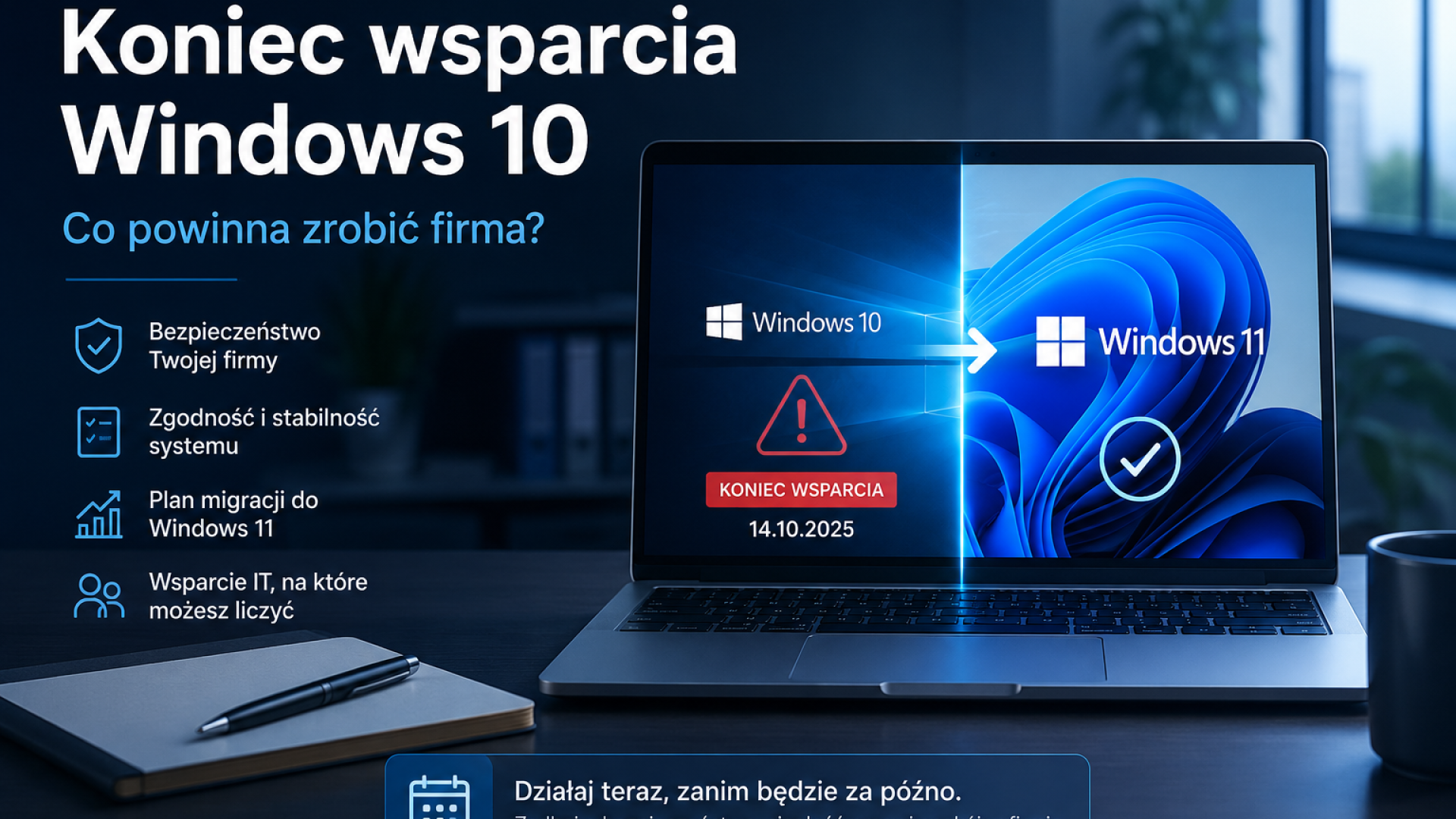
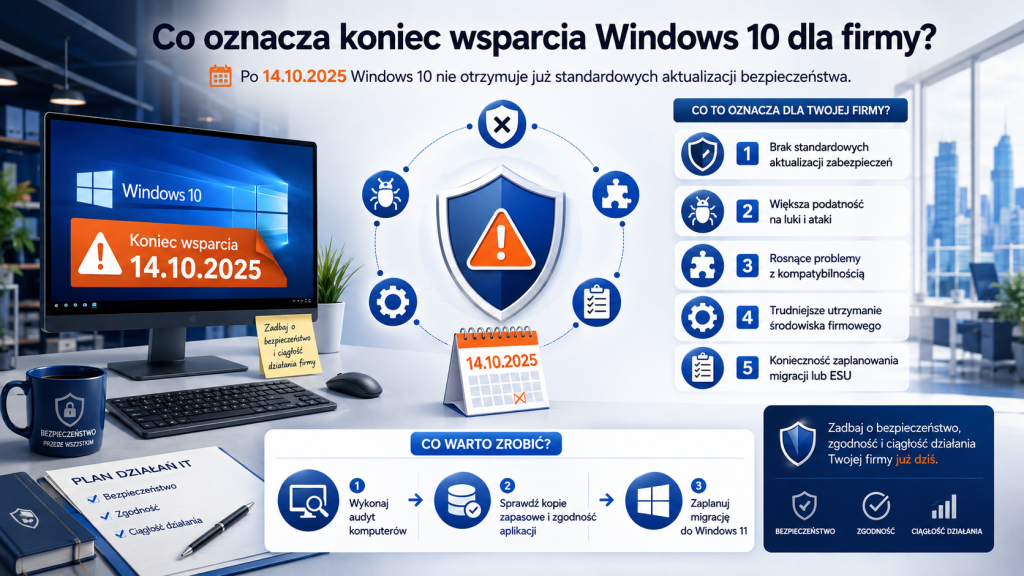
The end of support for Windows 10 means that the system is no longer being developed and protected as standard. It's not that computers will suddenly stop working on October 15, 2025. The point is that the system is no longer a safe and long-term basis for the corporate environment.
After support ends, Windows 10 no longer receives standard security updates. This is especially important because system updates aren't just about adding new features. They often fix vulnerabilities, or bugs, that cybercriminals can exploit.
In practice, this means that with each passing month, working on an unsupported system becomes less secure. Even if your computer is working properly, it may be more vulnerable to attacks, malware, data theft, or compatibility issues.
This can also mean organizational difficulties for the company. Manufacturers of accounting, sales, warehousing, manufacturing, or industry software may eventually limit testing of their applications on Windows 10. New software versions may be designed primarily with Windows 11 in mind. The situation may be similar with drivers for printers, scanners, multifunction devices, or specialized equipment.
It's worth viewing Windows 10's end of support not as a single date on the calendar, but as a change in the status of the entire work environment. From this point on, companies should consciously decide what to do next: whether they migrate to Windows 11, temporarily use paid ESU updates, replace some hardware, modernize company computers, or improve security.
Making no decision is also a decision, but it's usually the most expensive. Postponing the matter often leads to emergency actions: rushed purchases of random computers, migrations without testing, overtime work, printer problems, lack of access to files, or unnecessary stress on employees.
Why might continuing to work on Windows 10 be risky?

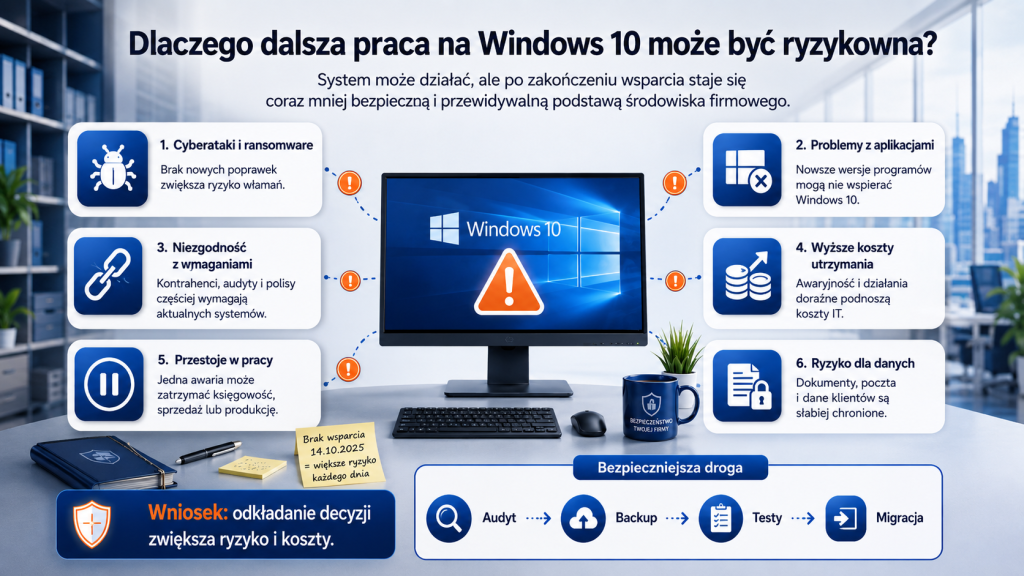
Continuing to use Windows 10 after support ends doesn't have to spell disaster. Many companies will continue to use their computers for some time. However, the risk is that the system no longer receives regular, standard security.
The most important threat is increased vulnerability to cyberattacks. Cybercriminals readily exploit known vulnerabilities in popular software. If a system lacks standard security patches, a company has less protection against new attack methods. This applies not only to large organizations. Small and medium-sized businesses are also attractive targets, as they often have weaker security measures, less formal procedures, and lack a dedicated IT department.
The second risk is problems with company software. Accounting software, invoicing, warehousing, customer service, electronic signature software, or specialized industry software may eventually require a newer system. The company may then face a problem: the software needs updating, but the computer doesn't meet Windows 11 requirements.
The third issue is compliance with the requirements of contractors, insurers, and auditors. More and more organizations are paying attention to IT security within their companies. An unsupported operating system can be considered a vulnerability. This can be important for cyber insurance, collaboration with larger contractors, internal auditing, or incident response.
The fourth problem is the difficulty of maintaining computers. An older system often comes with older hardware. Disks may be worn out, RAM may be insufficient, computers may run slowly, and employees may waste time waiting. In such circumstances, even a simple Windows 10 update within a company can prove more complex than initially anticipated.
The fifth risk is downtime. In a company, a single broken computer can mean delays in billing, customer service, production, sales, or administration. If several computers are of similar age and condition, failures can occur in series.
Data also shouldn't be forgotten. Company computers store client documents, contracts, invoices, HR data, projects, correspondence, and access to online systems. Working on an unsupported system increases the risk of this data being less protected. Antivirus alone doesn't solve the entire problem, especially if system updates, backups, MFA, password policies, and access controls are lacking.
That's why, as Windows 10 reaches the end of its support cycle, it's worth taking a broader look. Asking not just whether your computer can boot, but whether your entire work environment is secure, up-to-date, and ready for years to come.
Does the company have to replace all its computers at once?
No. Most companies don't need to immediately replace all their computers. Such a decision would often be too expensive and unnecessary. First, you need to assess what your company actually owns and which devices are suitable for continued operation.
Some Windows 10 computers may meet the requirements for Windows 11. In such cases, it's possible to update the system after making a backup and checking the programs. Some devices may require upgrades, such as adding RAM, replacing the HDD with an SSD, or cleaning up the system. There are also computers that no longer make sense to keep because they are too old, too slow, or do not meet the Windows 11 hardware requirements.
Windows 11 has specific requirements, including processor, RAM, hard drive, UEFI, Secure Boot, and TPM 2.0. Microsoft lists TPM 2.0 as one of the system requirements for Windows 11, so not every computer running Windows 10 today will be able to legally and stably upgrade to Windows 11.
In practice, this means it's worth conducting a company computer audit before making any purchases. This allows you to divide your equipment into several groups:
- • computers ready to migrate to Windows 11,
- • computers requiring minor modernization,
- • computers to be replaced first,
- • computers that can temporarily remain on Windows 10 with additional security or ESU,
- • special devices that require separate analysis.
This approach helps avoid chaos. The company doesn't buy haphazard equipment, doesn't replace computers that could still be working properly, and doesn't leave those workstations that are crucial to office operations unplanned.
We help companies navigate this stage with ease: we inspect computers, assess Windows 11 compatibility, identify risks, and prepare a clear list of recommendations. This eliminates the need for business owners or office managers to analyze the technical parameters of each device individually.
Computer audit – the first step before migration
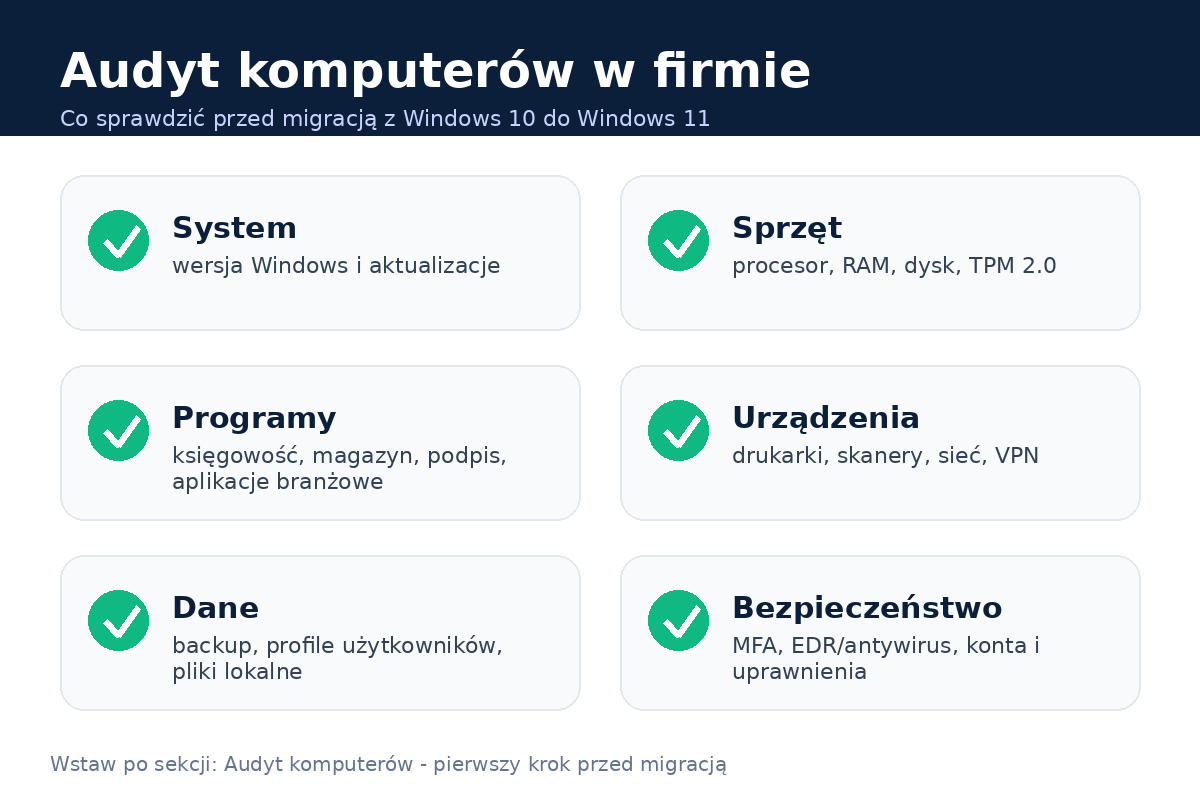
A company computer audit is the best starting point. Without it, it's difficult to make a good decision. You can, of course, try updating computers one at a time, but this approach quickly leads to problems: one computer updates, another doesn't meet the requirements, a program doesn't run on a third, and a fourth runs out of disk space.
A good audit should answer a few simple questions: what computers the company has, who uses them, what system is installed, which devices are critical to work, and what risks need to be addressed first.
In practice, the audit should include, among others:
- • list of computers and
- • users,
- • Windows versions,
- • compatibility with Windows 11,
- • processor model,
- • presence and status of TPM 2.0,
- • amount of RAM,
- • disk type and condition,
- • amount of free space,
- • age and general condition of the equipment,
- • company programs used,
- • printers, scanners and network devices,
- • user login method,
- • email configuration,
- • Microsoft 365 or other cloud services,
- • backup status,
- • antivirus or EDR,
- • basic security risks.
It's especially important to check your drives. Many companies still use computers with old HDDs or worn-out SSDs. Such a computer might theoretically meet some requirements, but in practice, it will run slowly and be more susceptible to failure. Replacing the drive with an SSD, adding RAM, or replacing the computer can significantly improve your work experience.
The audit should also cover software. This is a frequently overlooked element. A company might have a computer that meets Windows 11 requirements but is using an older accounting program, a manufacturing application, or a device driver that hasn't been tested for Windows 11. It's better to detect this before the migration than on Monday morning when an employee can't issue an invoice or run a key program.
As part of the audit, it's also worth checking backups. System migration itself is a good time to ensure that company data is protected. Backups should include not only files on the server but also important local data, program configurations, email, user documents, and data stored in the cloud if they require additional protection.
A well-executed audit concludes with a specific list of actions. Not a general statement that "something needs to be done," but a simple plan: we update this computer, we modernize this one, we replace this one, we temporarily leave this one with additional security, and we run a test for this program.
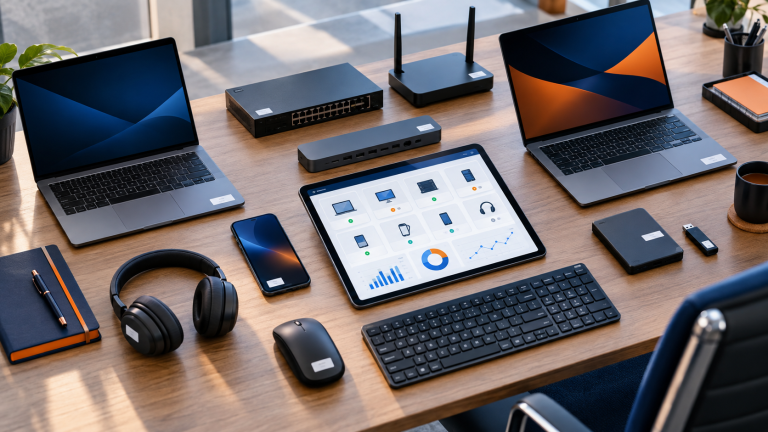
Migrating from Windows 10 to Windows 11 - how to do it without chaos?
Migrating from Windows 10 to Windows 11 should be a planned process, not a series of random updates. In a small business, even a few computers can be crucial to daily operations. In an accounting office, tax deadlines are crucial. In a law firm, access to documents and mail. In a trading company, sales, warehouses, and invoices. In manufacturing, positions related to technical devices or software.
The first step is to inventory your equipment. You need to know how many computers you have, where they are located, who uses them, and what they are used for. Otherwise, your plan will be disconnected from reality.
The second step is to check compatibility with Windows 11. This includes the processor, TPM 2.0, RAM, hard drive, UEFI, Secure Boot, and the overall health of the device. It's worth assessing whether an upgrade makes financial sense right away. Sometimes adding RAM and replacing the hard drive is enough. Sometimes it's better to buy a new computer with a warranty than investing in a device that's many years old.
The third step is data backup. This is absolutely essential. Before updating the system, you need to secure documents, desktop, application data, user profiles, email configuration, and other important files. A company shouldn't assume that "everything is in the cloud" until someone verifies it.
The fourth step is testing on selected computers. It's best to start with a less critical workstation or a computer representing a typical company configuration. After migration, you should verify that programs, printers, scanners, file access, email, electronic signatures, VPN, banking applications, and industry-specific tools are working.
The fifth step involves upgrading or replacing the hardware in stages. Not every company can afford to shut down an entire office. Therefore, it's best to stagger the migration so that employees can continue with their work. Sometimes, a good solution is to prepare new computers in advance, transfer the data, and quickly replace the workstation at a predetermined date.
The sixth step is configuring your work environment. Windows 11 for business isn't just about the system itself. You'll need to configure user accounts, email, Microsoft 365, OneDrive or SharePoint, printers, scanners, file access, program shortcuts, email signatures, permissions, and security.
The seventh step is a post-migration checkup. After switching to Windows 11, it's worth checking that everything is working properly, whether users have access to the necessary resources, whether backup is working, whether antivirus or EDR is active, whether updates are installing correctly, and whether there are no errors.
Migration carried out this way reduces the risk of downtime. Employees know what to expect, the company's data is secured, and any problems are detected during the testing phase, not in the middle of a busy workday.
ESU - are paid security updates for Windows 10 enough?
ESU, or Extended Security Updates, is a paid program of extended security updates for Windows 10. Microsoft indicates that organizations can enroll their computers in a paid ESU subscription after support ends to continue receiving critical and important security updates.
This can be a useful solution, but it needs to be understood carefully. ESU isn't a solution to permanently avoid migration. It's more of a temporary solution for companies that need more time.
ESU can make sense when a company has older, specialized software that can't be quickly migrated to Windows 11. It can also help when the migration requires testing, vendor coordination, or a phased hardware upgrade. In some companies, the budget for computer upgrades needs to be spread over several months. In such situations, ESU can reduce risk during the transition period.
However, ESU shouldn't be considered a complete replacement for a well-planned migration. It's an additional cost. The program doesn't provide new system features. It doesn't address the problems of old hardware, slow computers, worn-out drives, lack of TPM 2.0, or unorganized data. It also doesn't replace backups, EDR, MFA, security policies, or access controls.
In practice, ESU should be considered as part of a plan, not the entire plan. If a company needs a few more months to replace computers or adapt an industry-specific program, extended updates can be a reasonable interim measure. However, a final solution must be developed in parallel.
For most companies, the best course of action will be an audit, a migration plan, modernizing company computers where it makes sense, and moving to Windows 11. ESU can help in more difficult cases, but it shouldn't be an excuse to put the matter off indefinitely.
| Option | When it makes sense | The biggest risk | Recommendation for the company |
|---|---|---|---|
| Will stay on Windows 10 without taking any action | Practically only for a very short time, when the computer has no access to the Internet, does not process important data or is waiting for an exchange | Lack of standard security updates, increased risk of cyberattacks, program and compatibility issues | We don't recommend it as a corporate strategy. This is a fallback solution, not a plan. |
| ESU as a temporary solution | When a company needs time for testing, hardware replacement, industry program adaptation, or phased migration | Additional cost, lack of new features, unresolved old hardware issues and postponed decisions | It can be good as a transitional step, but only in conjunction with a migration plan |
| Migrating to Windows 11 | When the equipment meets the requirements or the company plans to modernize the workstations | Risk of problems if migration is performed without audit, backup and testing | The best long-term option for most businesses, provided they are well prepared |
The end of Windows 10 support is a good time to take a broader look at your company's IT. If you still need to check your computers, systems, and programs, it's worth taking the opportunity to clean up other elements that directly impact your security and workflow.
The first area is Microsoft 365. Many companies rely on this environment for email, files, and teamwork, but configuration can be haphazard. MFA is often lacking, users have excessive permissions, files are scattered across computers, OneDrive isn't configured correctly, and the company lacks clear control over former employee accounts.
When migrating, it is worth checking whether Microsoft 365 is well suited to the company's needs, whether licenses are being used properly, whether accounts are secured, whether email has anti-phishing protection, and whether access to data is organized.
The second area is backups. Backups should be verified, not just "set up once." It's important to know what they include, how often they're performed, where they're stored, and whether data can be realistically restored from them. In many companies, only a failure reveals that the backup was incomplete, outdated, or that no one knew the backup password.
The third area is antivirus or EDR. Traditional antivirus can still be a part of protection, but companies are increasingly considering more advanced EDR solutions that monitor suspicious behavior, respond to incidents, and provide a better picture of computer security.
The fourth area is user accounts. It's worth checking who has access to what data, whether each employee uses their own account, whether passwords are secure, whether former employee accounts have been locked, and whether administrators have separate accounts for technical tasks.
The fifth area is securing corporate email. Email is one of the most common attack channels. Fake invoices, customer impersonations, password theft attempts, and malicious attachments are commonplace. MFA, email filtering, user training, and good procedures can significantly reduce the risk.
The sixth area is file access. In many companies, documents are stored locally on computers, on random network drives, or in private clouds. Migration is a good time to determine where company data should be located, who has access to it, and how it is secured.
The seventh area is the network, router, and Wi-Fi. Even the best computer won't help if the company network is poorly secured. It's worth checking passwords, router firmware updates, guest access, network segmentation, and basic security settings.
The eighth area is disaster recovery procedures. A company should know what to do if a computer stops working, an employee clicks a suspicious link, files disappear, or the internet goes down. A simple procedure can save a lot of time and frustration.
We help companies use the migration to Windows 11 as an opportunity to streamline their entire work environment. This means more than just installing the system, but also significantly improving the security and convenience of everyday work.
Moving from Windows 10 to Windows 11 can be simple, but only if you're well-prepared. In practice, companies often make the same mistakes.
The first mistake is putting things off until later. As long as the computer is running, the issue doesn't seem urgent. The problem arises when several workstations need to be quickly replaced, a program crashes, or a security incident occurs. The later a company starts operating, the less time it has for calm decisions.
The second mistake is updating without a backup. This is a risk not worth taking. Even if the update usually runs smoothly, there's always the possibility of an error, a disk failure, a user profile issue, or a conflict with the program. A backup should be mandatory.
The third mistake is a lack of program testing. The system itself might be working, but a key corporate program might have a problem with a new Windows version, a driver, a database, or permissions. Testing on a single workstation helps avoid larger-scale problems.
The fourth mistake is buying random equipment. A store sale doesn't always mean a good choice for the company. A company computer should have the right specifications, a warranty, serviceability, and a configuration tailored to the employee's tasks. Equipment that's too weak can quickly become a problem, while too powerful can unnecessarily increase costs.
The fifth mistake is failing to check Windows 11 requirements. Not every Windows 10 computer is suitable for the upgrade. TPM 2.0, processor, RAM, hard drive, and firmware settings all play a role. Attempting to bypass the requirements can lead to stability, update, and support issues.
The sixth mistake is overlooking older office equipment. Printers, scanners, barcode readers, fiscal devices, electronic signatures, and specialized equipment must also function after migration. It's worth checking drivers and compatibility beforehand.
The seventh mistake is a lack of a plan for users. Employees should know when a change will occur, what will be migrated, how to log in to email, where files will be, and who to report a problem to. Good communication reduces stress and the number of tickets.
The eighth mistake is treating migration solely as a system installation. In a company, a computer is part of a larger environment: email, files, printers, applications, security, accounts, and procedures. If we only update the system and ignore the rest, we miss the opportunity to truly improve the company's operations.
Companies without their own IT department often know something needs to be done, but they don't know where to start. This is normal. A business owner, office manager, or administrator doesn't need to know TPM 2.0 requirements or processor models., security policies and system migration details.
Our role is to organize the issue from start to finish. We begin with a computer audit. We check hardware, systems, disk health, RAM, Windows 11 compatibility, programs used, office equipment, backups, and basic security.
We then prepare recommendations. For each position, we can determine the best path: a Windows 11 upgrade, a minor upgrade, a computer replacement, or a temporary solution. This allows the company to see which actions are urgent, which can be staggered, and where it's not worth investing in old equipment.
We also assist with the migration to Windows 11 itself. We prepare backups, test selected workstations, configure user accounts, email, Microsoft 365, printers, file access, security, and necessary applications. After the migration, we verify that everything is working properly.
If your company uses Microsoft 365, we can organize licenses, accounts, MFA, email, OneDrive, SharePoint, and access policies. If backup is insufficient, we can propose a solution tailored to the company's size and data type. If security is too basic, we can implement or enhance antivirus, EDR, update policies, and response procedures.
We also support users. This is important because even the most well-prepared migration requires a short adaptation period. Employees may need assistance with email, files, printers, signatures, applications, or new system settings.
Once the migration is complete, the company can benefit from continued IT support. Ongoing IT support for businesses means they don't have to resort to a situation where updates, backups, security, and hardware are only monitored when a problem arises.
The point isn't to overcomplicate things. It's about enabling companies to operate safely, understand the state of their IT, and make decisions based on facts, not guesswork.
Will Windows 10 stop working after support ends?
Can the company continue to use Windows 10?
Will antivirus be enough if we stick with Windows 10?
Can any Windows 10 computer be upgraded to Windows 11?
What if a company program only works on Windows 10?
How long does it take to migrate a company from Windows 10 to Windows 11?
Do I need to make a backup before updating?
Is it worth implementing Microsoft 365 or improving security at the same time?
Summary
The end of Windows 10 support isn't just a technical issue. It's a signal that companies should ensure their computers, data, programs, and security are ready for the years to come.
The most sensible first step is to audit your company's computers. Only then can you decide which devices to upgrade to Windows 11, which to modernize, which to replace, and which require a temporary solution like ESU. Such a plan helps avoid chaotic purchases, downtime, and unnecessary risk.
It is worth treating migration as an opportunity to organize the entire IT environment: Microsoft 365, backups, security, user accounts, email, file access and disaster recovery procedures.
If your company isn't sure where to begin, we can help with an audit and a simple migration plan. We'll verify your hardware, identify risks, propose the best solutions, and guide your company through the transition from Windows 10 to Windows 11 without unnecessary disruption.