A flash drive or portable hard drive is still one of the most common ways to transport data—documents, backups, or work files. The problem arises when such a device is lost or falls into the wrong hands. Without encryption, anyone can read the data stored on it, even if it was "only temporarily.".
Fortunately, encrypting a flash drive or USB drive doesn't require specialized knowledge or paid tools. In this article, we show three simple and proven methods, that will allow you to password-protect your data—from built-in solutions to free tools available to everyone. After a short read, you'll know which method to choose and how to put it into practice.
Before you start – 2 things that will save you trouble
1) Make a copy of your data
Encrypting a flash drive or portable hard drive often involves formatting the device, which deletes all files. Before you begin, copy your data to a safe location (e.g., a computer or the cloud). This simple step protects against unnecessary file loss.
2) Take care of your password and keep it safe
Encryption only works if the password is known only to you. If you lose or forget it, access to your data may be impossible – even for experts. It's a good idea to write down your password or recovery key in a password manager or other secure place, not on a piece of paper. desk”.
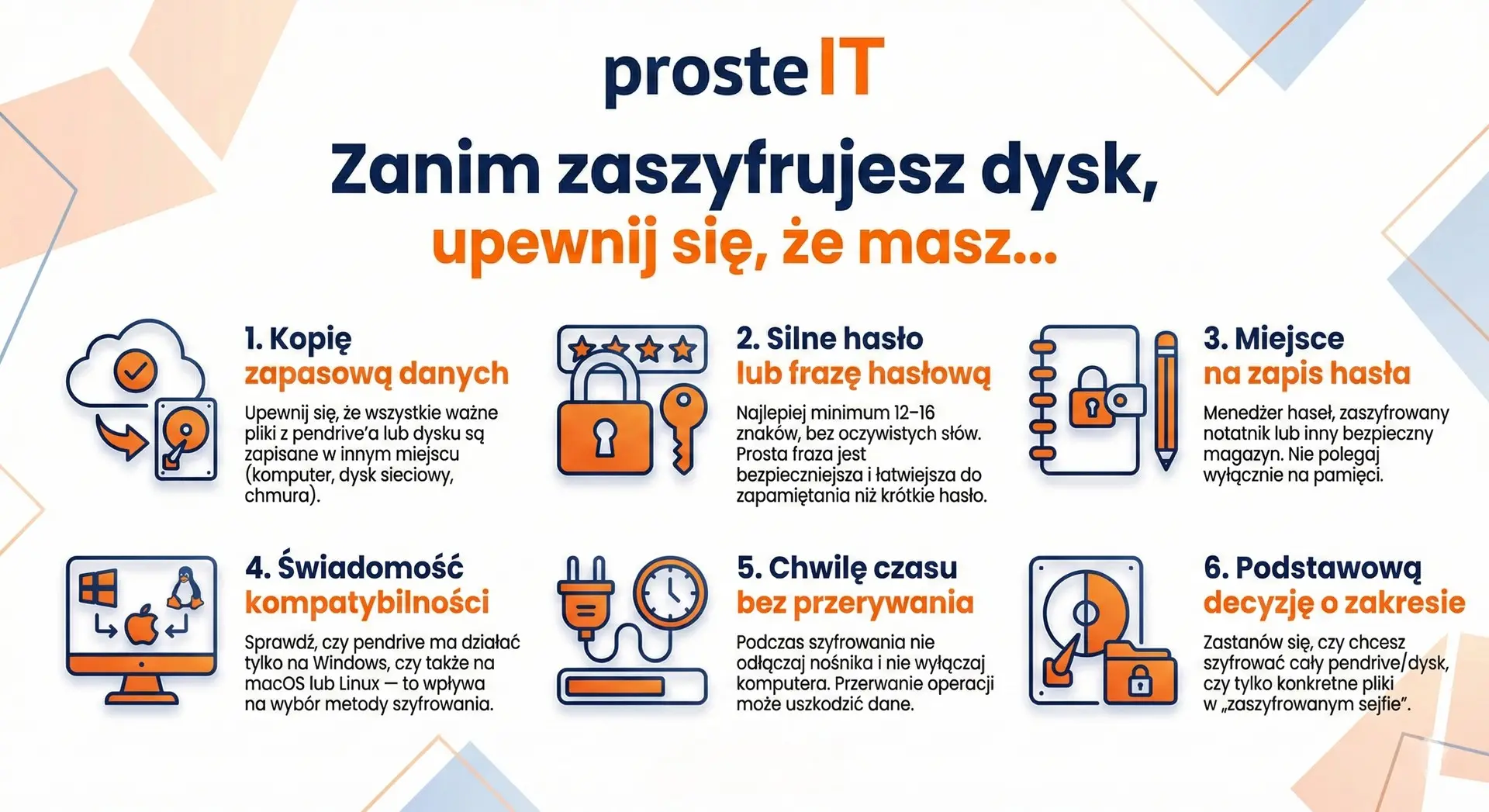
Below you will find a short checklist worth reading before encrypting your disk (available for download):
Method 1: BitLocker To Go (Windows – easiest if you have the right edition)
For whom:
For Windows users who want the fastest and built-in solution without installing additional programs.
Requirements:
BitLocker To Go is available in editions Windows Pro, Enterprise and Education. If you use Windows Home, this method will not be available.
How to encrypt a pendrive or USB drive step by step
Connect the pendrive or external drive to your computer
Make sure the system has detected the media correctly.Open BitLocker Management
In the Start menu, type Manage BitLocker and run the tool.Enable BitLocker for USB drive
With the selected pendrive or disk click Turn on BitLocker.Set unlock method
The most frequently chosen is password. Set them and confirm.Save recovery key
This is a crucial moment. Save it in a safe place (file, Microsoft account, printout). Without this key, data recovery may be impossible.Start encryption
Select an encryption mode and wait for the process to complete. The time depends on the capacity of the storage device.
How it works in practice
Once encrypted, each time you connect the flash drive or disk to your computer, a window will appear asking for the password. Without it, the contents of the drive are completely inaccessible.
What's worth knowing
• BitLocker encrypts the entire medium, not just selected files.
• The media works best in a Windows environment – other systems may have limited access.
• Losing your password and recovery key means permanent data loss.

Method 2: VeraCrypt (free, powerful, cross-platform)
For whom:
For those who want a free solution, more control over encryption and the ability to use a flash drive or hard drive Windows, macOS and Linux.
What is VeraCrypt:
VeraCrypt is a free, open-source data encryption tool. It is widely recognized as secure and used by both private users and businesses.
Two encryption options – choose simpler or "full"„
Option A: Encrypted Container (Recommended for beginners)
You create a single encrypted file (called a container) that acts as a safe. After entering the password, it mounts as an additional drive.
Option B: Encrypting the entire flash drive or disk
The entire storage device is encrypted and requires unlocking before use. This is a more secure, but more invasive, solution.
In this article we focus on option A, because it is the simplest and least risky.
How to create an encrypted "safe" on a flash drive (step by step)
Install and run VeraCrypt
The program is free and available for major operating systems.Create a new volume
Click Create Volume and choose Create an encrypted file container.Select container location
Select the pendrive or portable disk and name the file (e.g.dane_secure.hc).Set encryption parameters
The default settings (AES) are fully sufficient for most applications.Set a password
The longer and more unique the password, the better. Without this password, the data will be inaccessible.Create volume
Once the process is complete, you have an encrypted file safe ready to use.
How to use an encrypted container
• You run VeraCrypt
• You choose a drive letter
• You specify the container file
• You enter your password
Once unlocked, the volume functions as a regular folder. When you're finished, simply close it. unmount, to make the data encrypted again.
What's worth knowing
• VeraCrypt does not save password – its loss means data loss.
• The container can be easily moved between computers.
• The program requires manual mounting of the volume before work and unmounting after completion.
If you want something even simpler, without installing additional software for your daily work, we'll move on to the next step Method 3: Simple Encrypted Vault Using 7-Zip.

Method 3: 7-Zip as an "Encrypted Vault" to a Flash Drive (Free and Easiest)
For whom:
For people who want the fastest and easiest way file security without encrypting the entire flash drive and without technical configurations.
What does it involve:
Instead of encrypting the entire media, you create one encrypted archive (.7z), which acts as a safe for selected files. All protection is based on a strong password and encryption. AES-256.
How to create an encrypted "safe" step by step
Install 7-Zip
This is a free program available for Windows.Select files or folder to protect
Select the data you want to protect (e.g. documents, copies of contracts, work files).Create a 7z archive
Right click → 7-Zip → Add to archive.Set encryption
• In the configuration window:
• archive format: 7z
• encryption method: AES-256
• set a strong password
• select option Encrypt file names
Save the archive to a pendrive
Once approved, a single encrypted file is created that you can transfer and store on any medium.
How to use the encrypted archive
• To open files, simply double-click and enter the password.
• Without the correct password, the contents of the archive are completely inaccessible.
• After closing the archive, the data automatically remains encrypted.
What's worth knowing
• This is the solution does not encrypt the entire pendrive, only selected files.
• The archive can be opened on any computer with 7-Zip (or a compatible tool).
• Perfect for documents you rarely edit but want to move safely.
This method is great if you care about simplicity and speed, and full encryption of the medium would be a triumph of style over substance.

Which method to choose
• BitLocker To Go – choose if you use Windows Pro/Enterprise/Education and want the simplest, built-in solution for full-disk encryption.
• VeraCrypt – the best choice when you need a solution that is free, universal and also works on macOS and Linux.
• 7-Zip (Encrypted Vault) – the simplest option when you want to quickly protect only selected files, without encrypting the entire flash drive.
If you're not sure, start with 7-Zip, and once you gain experience, switch to BitLocker or VeraCrypt.
FAQ - questions and answers
In practice, the differences are minor. During normal work with documents or office files, encryption is almost unnoticeable.
In most cases, data is unrecoverable. Encryption effectively protects data, even from the owner without the password.
Yes, but it depends on the method. BitLocker works best on Windows, VeraCrypt is cross-platform, and 7-Zip archives can be opened on most computers.
Yes. Data encryption is recommended, especially when working with personal, financial, or corporate data.
Yes – we help you choose the right method, configure encryption, and secure your access keys in a practical and secure way.
We operate both remotely, What locally – depending on your needs, we can help on-site or guide you through the entire process step by step online.